
Stamps: Personal & Organization
Dynamic stamps let you overlay real-time project data — like the current date, project number, and your name — directly onto your professional stamp image. Part3 fills in the fields automatically when you apply the stamp.
A dynamic stamp can belong to you, or to your organization.
📹 Check out our help video to walk you through dynamic stamps!
Personal vs. Organization Stamps
- Personal stamps: You create them in Account Settings, and only you can use them.
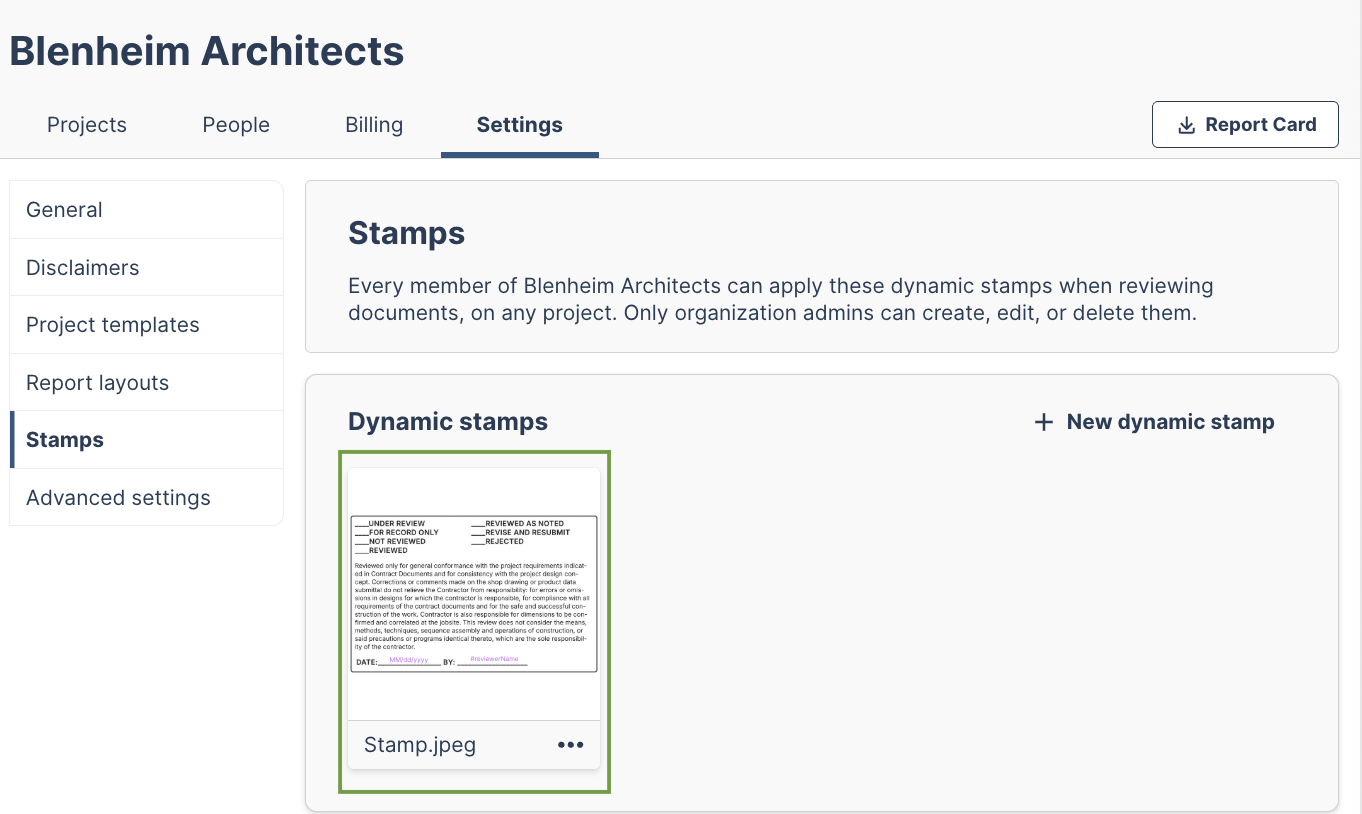
- Organization stamps: An organization admin creates them once in Organization Settings > Stamps, and every prime team member can use them on any project.
- Either way, fields fill in for the person applying the stamp. For example, Reviewer Name shows whoever applies it, and Current Date shows the day it's applied.
Only organization admins can create, edit, or delete organization stamps.
Creating a Dynamic Stamp
Step 1 — Upload Your Base Image
- Go to Account Settings (click your initials in the top right corner, then Account Settings).
- Creating an organization stamp? Go to Organization > Settings instead (admins only).
- Scroll to the Stamps section.
- Click "+ New dynamic stamp"
- Upload your base stamp image (PNG or JPEG).


Step 2 — Add Dynamic Fields
- Add dynamic variables: In the editor sidebar, click the pill buttons for each field you want to include (Current Date, Project Number, Reviewer Name, etc.). Each field appears as a draggable text element on top of your stamp image.

Step 3 — Position and Size the Fields
- Click and drag each field to place it exactly where you want it on your stamp. You can adjust the font size for each element. Your layout scales to fit any size.
Step 4 — Configure Appearance
- Click the colour swatch to open the font colour picker and set the text colour for the dynamic variables (default is black).
Step 5 — Save
-
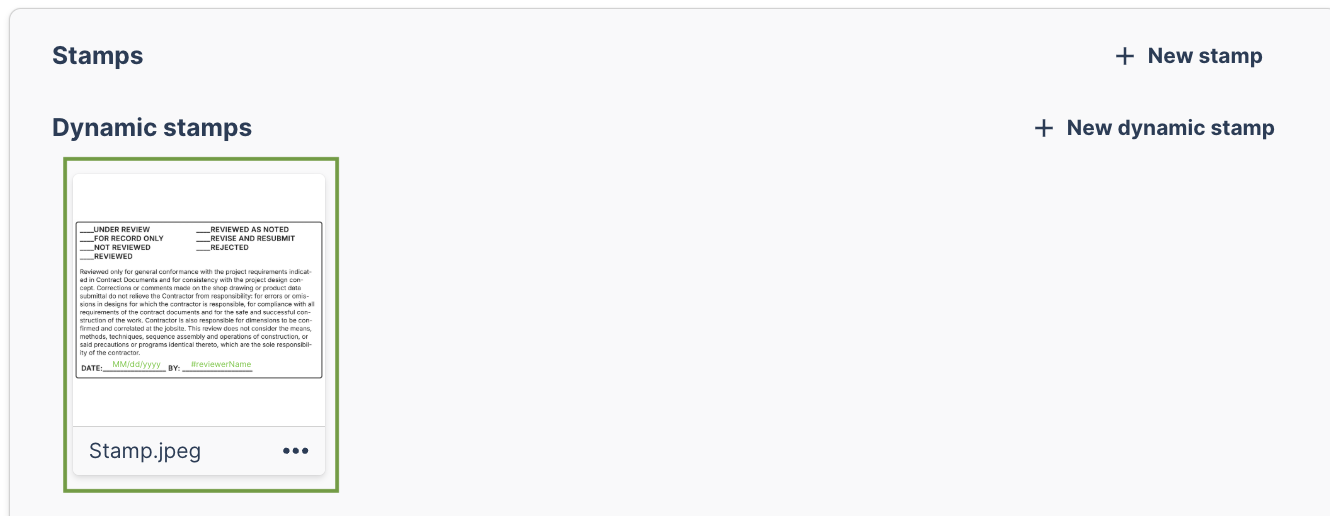
Enter a title for your stamp and click "Save". Your new dynamic stamp will appear in the Dynamic stamps list. Organization stamps are available to every member right away.
Applying a Dynamic Stamp to a Document
To apply your dynamic stamp to a document, like a submittal, follow these steps:
- Open the document to review. Once in review mode, select the stamp icon to apply your stamp.
- In the stamp selector, choose your dynamic stamp. Organization stamps appear first, each tagged with the organization's name. Your personal stamps follow. If you belong to more than one organization, you'll see stamps from each.
- The Apply Stamp modal will open with two panels:
- Left panel: A live preview showing your stamp populated with real project data
- Right panel: Controls to fine tune element positions and sizes.
- Optionally, click Mark stamp status to add an X mark to the stamp. The button will turn green with a checkmark when active, and you can position the X anywhere on the stamp.
- Click Apply Stamp to finalize, and place on the file. Select the stamp to adjust the size to suit your document. Your stamp is rendered with all fields filled in and placed on the document.

Tip: Don't see your organization's stamp? Ask an organization admin to check Organization Settings > Stamps. Note that cover pages only accept image stamps, so dynamic stamps can't be added there.
Editing a Dynamic Stamp
- Go to Account Settings > Stamps. For an organization stamp, go to Organization Settings > Stamps instead (admins only).
- Click on your existing dynamic stamp.
- The editor reopens with all your current settings — reposition elements, adjust sizes, change the font colour, update the date format, or rename the title.
- Click "Save" to update.
Important: You cannot change the base image of an existing dynamic stamp. If you need a different image, delete the stamp and create a new one. Edits don't change stamps already applied to documents.
Deleting a Dynamic Stamp
- Go to Account Settings > Stamps. For an organization stamp, go to Organization Settings > Stamps instead (admins only).
- Click the three-dot menu on the dynamic stamp card.
- Select "Delete stamp."
- Confirm by clicking "Yes, delete" in the dialog.
Deleting an organization stamp removes it from the stamp selector for every member of the organization. Stamps already applied to documents are not changed.
As always, if you have any questions or see any issues with this article, please reach out to by emailing support@part3.io