
Schedule of Values
You can manage your Schedule of Values (SOV) directly in Part3! 💫
The SOV is a detailed breakdown of the total contract sum into individual scopes of work, each with its own assigned value. Enabling this gives your project a clear financial structure, making progress billing easier, and helping you track completion across each line item.
Enabling Schedule of Values on a Project
- Open the relevant project.
- Navigate to Settings.
- Select Document Settings.
- Click on Certificates.
- Toggle on Enable Schedule of Values.
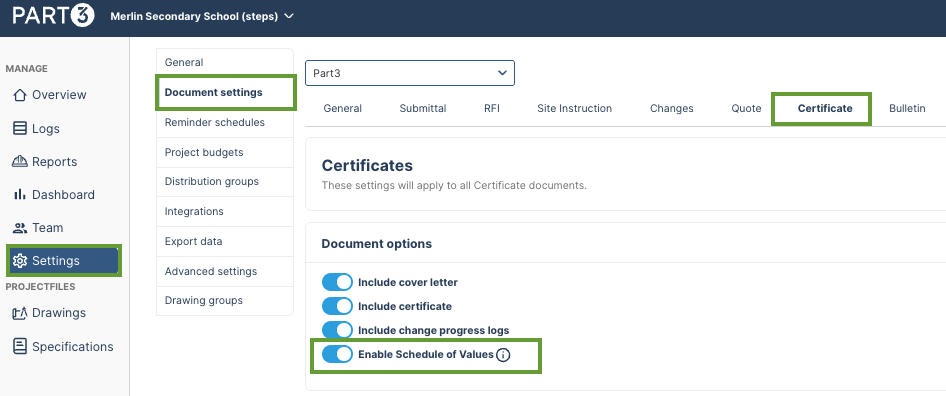
Accessing the Schedule of Values
Once enabled:
- Go to Logs.
- Select Certificates.
- Click Schedule of Values in the top right corner.
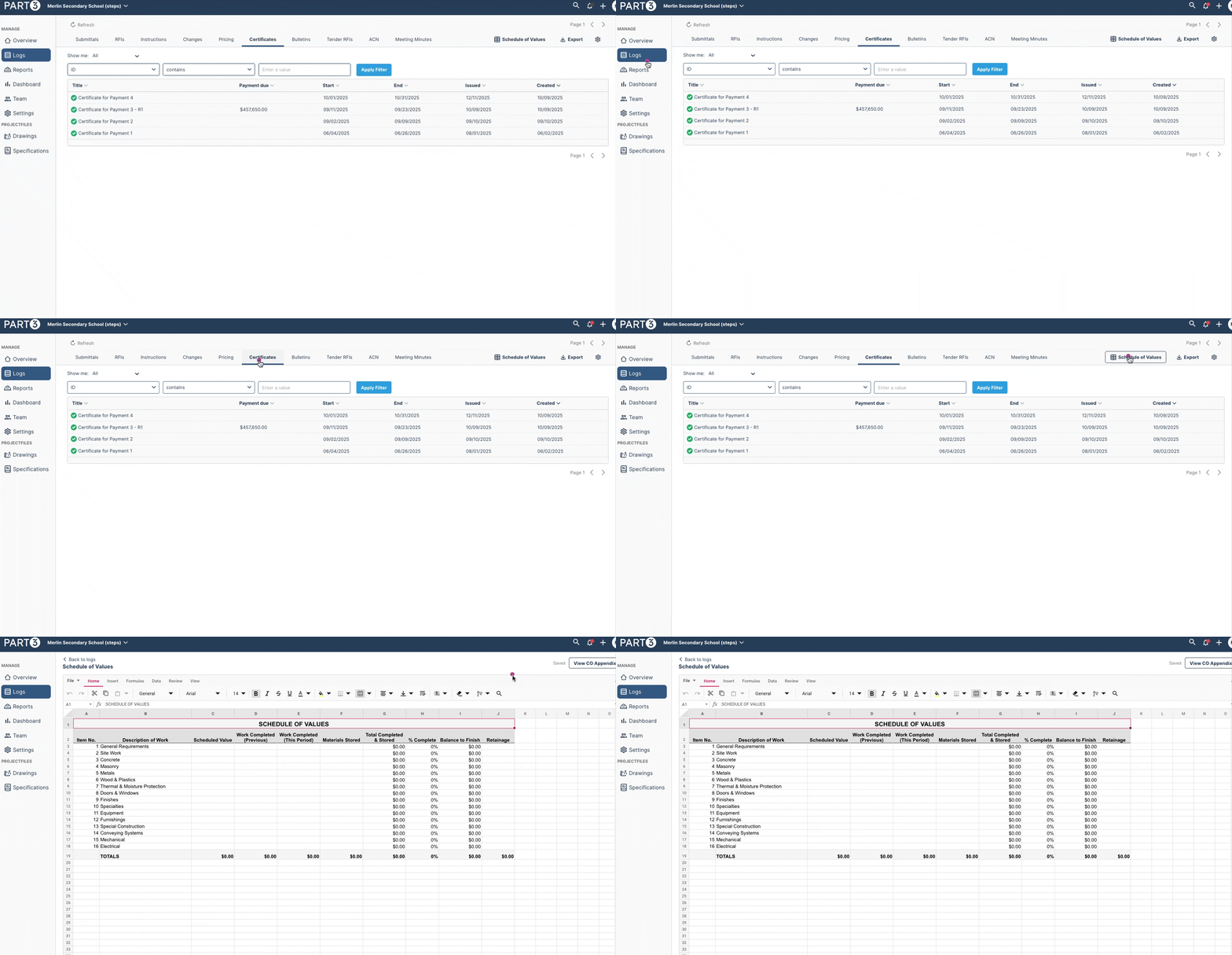
Schedule of Values
With the feature enabled, you're ready to build out the SOV. Each line item represents a discrete work component — such as a trade, phase, or deliverable — with an assigned portion of the total contract value.
- Go to the Schedule of Values tab within the project.
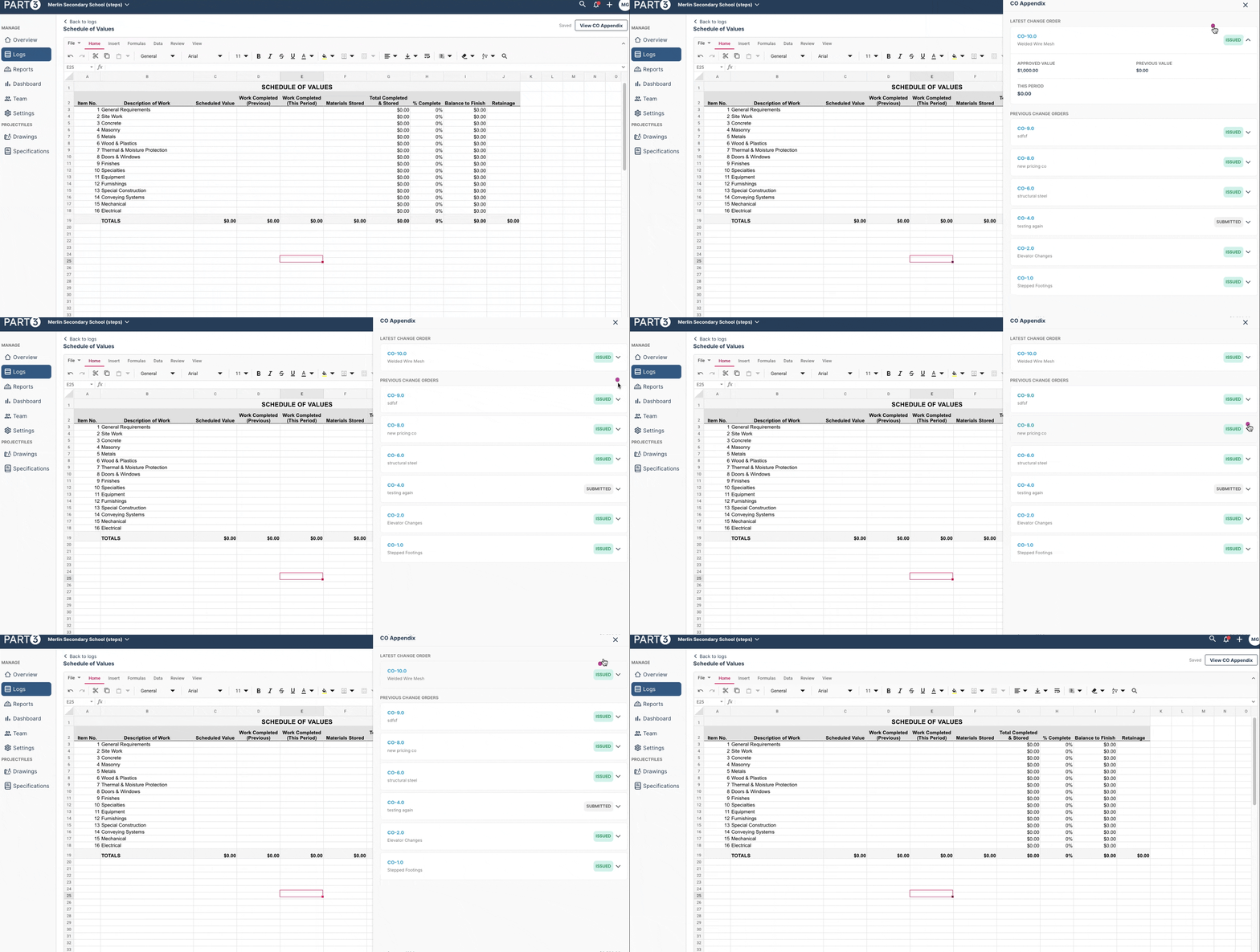
- Add the values to the spreadsheet. As values are added, pre-calculations will populate accordingly. If you have a file to import, jump to the next section.
- Select the 'view CO Appendix' in the top right corner to view Change Order details.
Your SOV is now ready to serve as the basis for progress! You can update completion values as work progresses. This drives your payment applications and gives stakeholders a real-time view of where the project stands against the contract!
Hot Tip: You can adjust the spreadsheet to fit your project however you need. Need to add another line item or remove one? Go for it. It’s fully flexible so you can structure it in a way that makes sense for your team.
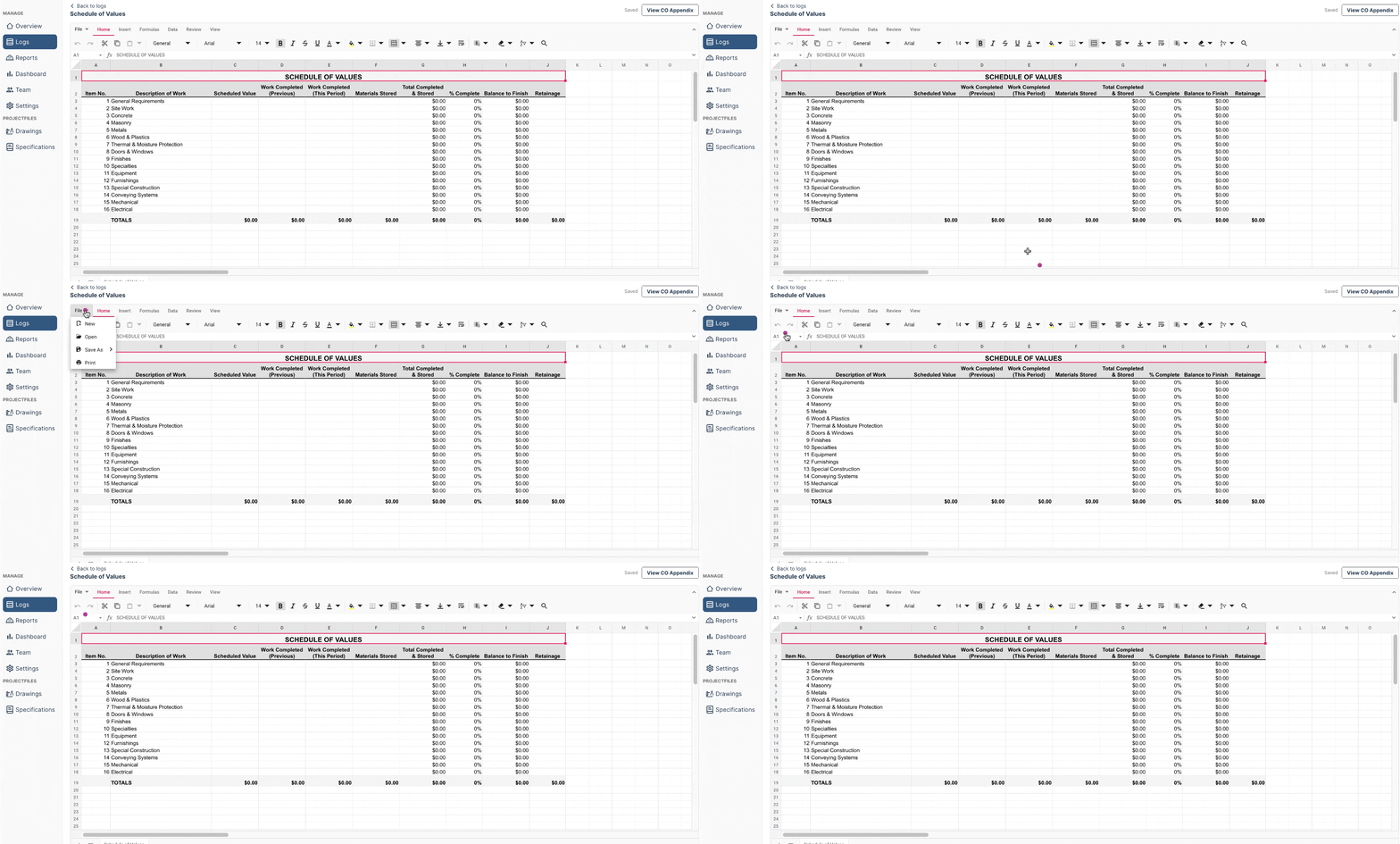
Import an Existing File
Already have a SOV underway outside of Part3? No problem. You can bring it into the platform in just a few steps:
- Select File → Open.
- Choose the .xlsx file you’d like to import.
- Click Save.
That’s it. Your SOV will now live in Part3 and can be managed directly within the platform.
Important: When you import your own XLSX file, the existing Part3 SOV template will be overridden and cannot be recovered.
As always, if you have any questions or see an issue with this document, please contact us at support@part3.io