
ProjectFiles: Sketches
Issuing a sketch instead of a full drawing sheet? No problem! Part3 lets you attach sketches directly to a Change Order, Site Instruction, or RFI — and keeps them organized in your Drawings section automatically. Follow the steps below to get it done!
📎 How to Upload a Sketch
Step 1: Add the Sketch
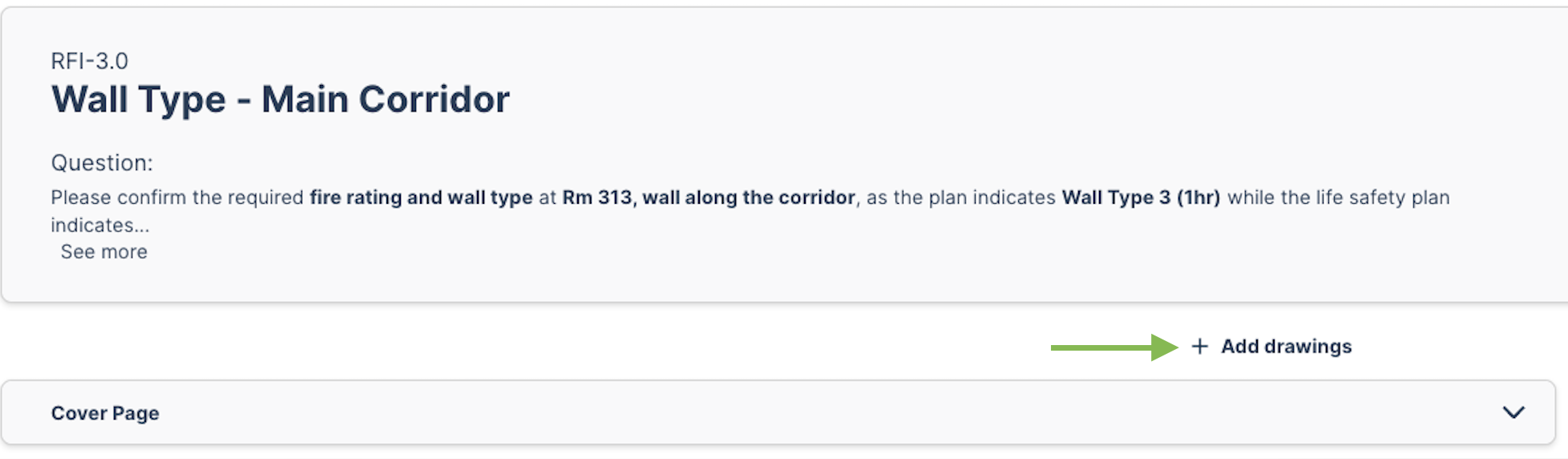
From your Change Order, Site Instruction, or RFI, click the '+ Add drawings' button.
Step 2: Upload Your File
Drag and drop the PDF sketch you want to attach.
Step 3: Fill in the Details
During the upload, review and fill out the following fields:
- Document type — Select 'Sketch' from the dropdown.
- Drawing No. and Title — Update these to reflect the document you're attaching.
- Issuance date — This is typically the upload date or the revision date shown in your title block.
- Description — Optionally add a brief note about what's being updated or revised.
- Linked drawings — Search for any related drawings to connect them. This helps team members find context when browsing the Drawings section.
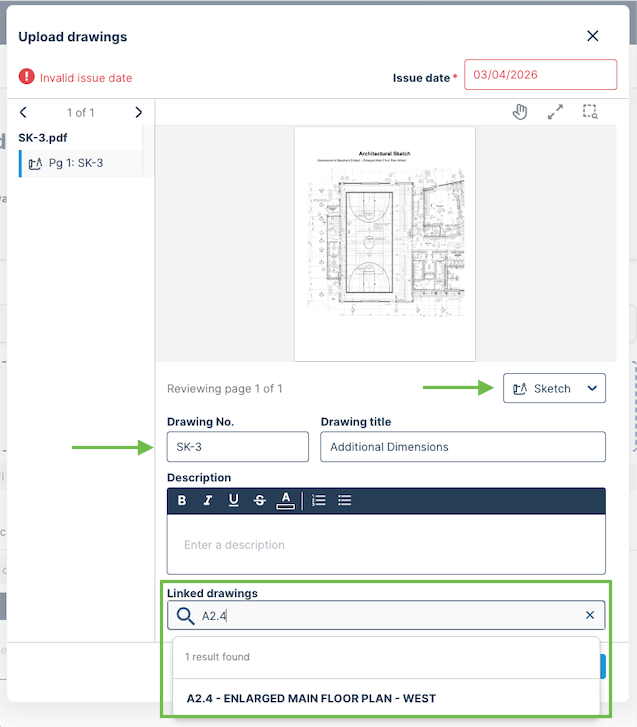
Click 'Save and next' to review all sheets, then click 'Upload all' when you're ready.
Step 4: Return or Issue Your Document
Once the sketch is uploaded, return to your document and issue it as usual.
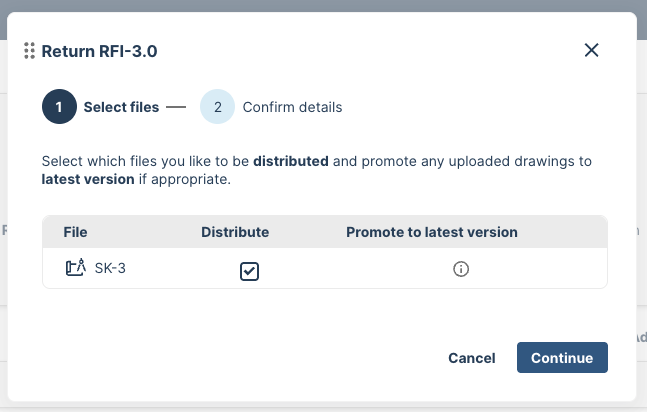
Note: If this is the first version of the sketch, it is automatically promoted to the latest version in the Drawings section.
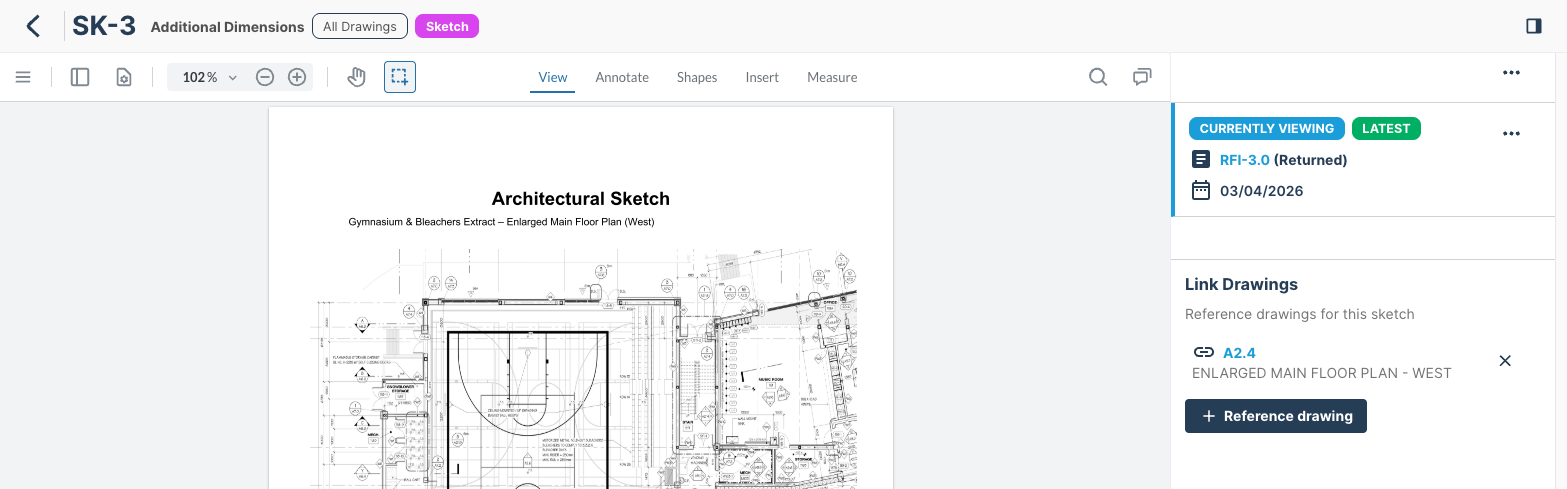
✅ That's it! Your sketch is now saved in the Drawings section in the left-hand menu, where you can search for it anytime. When you open it, you'll see all the drawings it's linked to — and you can always add more links later.
Why Link Related Drawings?
Linking a sketch to its related drawings makes it easy for anyone on the project to trace what changed and why. When someone opens the original drawing, they'll see the sketch is connected — giving them the full picture without having to dig through the log.
As always, if you have any questions or see any issues with this article, please reach out by emailing support@part3.io