
Project Teams
Once you've created your project, you'll be directed to the teams page where you can start adding companies and people to the project! 🌟
Remember, Part3 is a collaborative platform. The more people in your project, the more you get out of Part3!
Add Companies
When you first create a project, your teams page will look something like this:

Step 1: Start by adding the participating Companies to your project by clicking '+ Company'.

Step 2: You can add companies in 2 ways. Either by adding from the organization directory or by adding a new company from scratch.
Option 1- - Directory: Find the company in your directory, followed by add company.


Option 2 - Add New Company: Type in the new company name, followed by create new company.

Hot tip: If you're just starting in Part3 and don't have any companies in your directory, follow Option 2. Once the new company is added, it will automatically save to your directory, so you can easily add them on your next project!
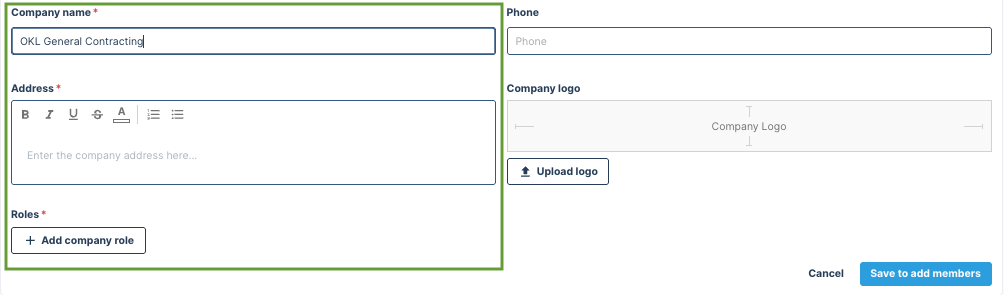
Step 3: Add the company's name and address, which are both required. Optionally add their phone number, and company logo.
- If you went with Option 1, you can skip this!
One General Contractor per project
A project can only have one General Contractor role. Once that role is assigned, it no longer appears in the role picker for other companies. If you need to change it, update the company that currently holds the role first.
Step 4: Select +add company role to assign the company's role. Select the role from the dropdown menu, followed by save. Once you're happy with the role, select save to add members in the bottom left.
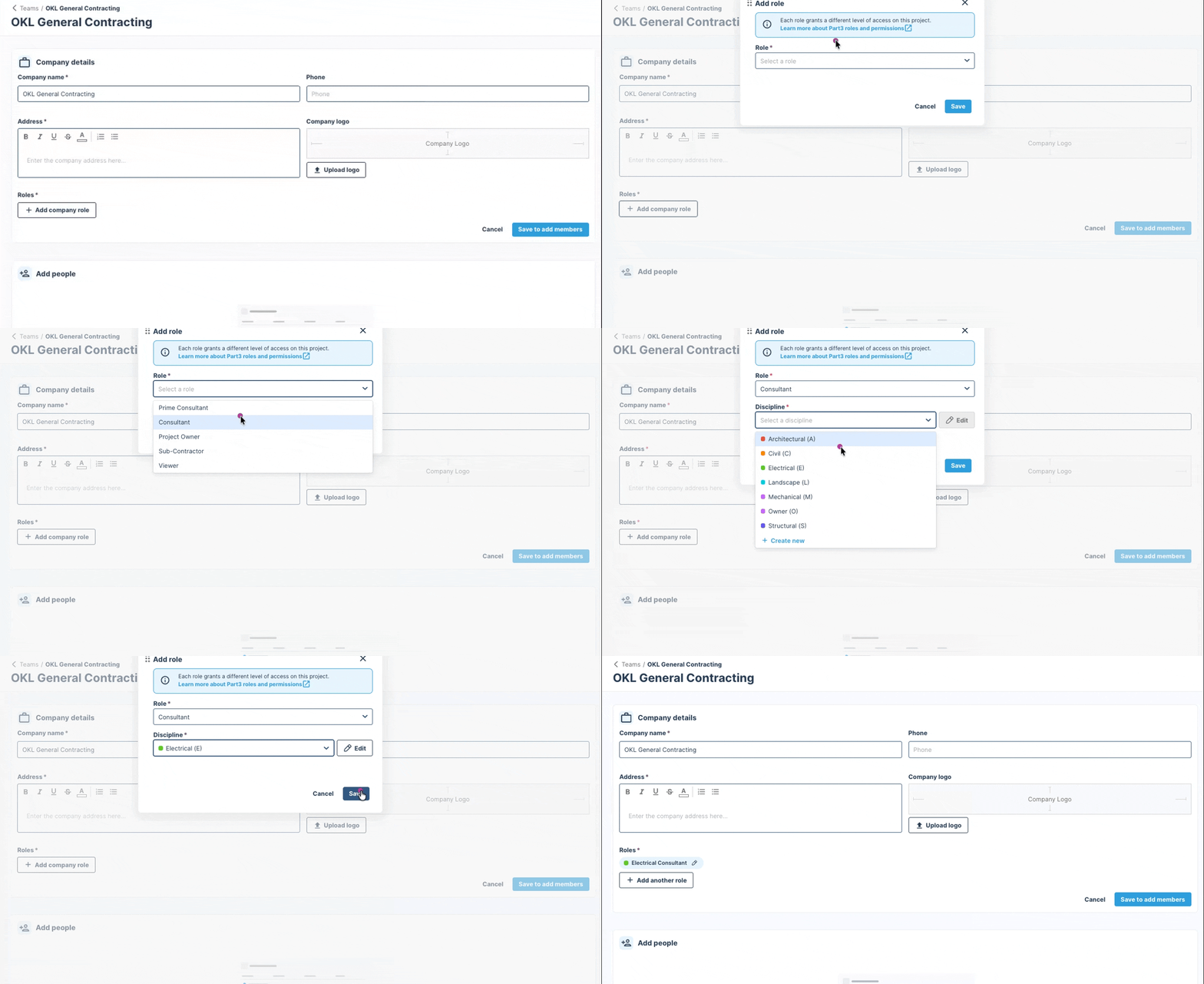
Hot Tip: Check out this help doc to understand the different permission levels of each role.
Add People
Step 1: Follow the steps above to add a company. Once that's done, you're ready to add people!
Step 2: Add people to the company.
- If people are already in your directory for that company, they're added automatically with their email and roles, like Sandy in the below example.
- Leave send invite(s) checked to send their invite right away, or deselect it to send later. Select the trash can icon if you don't want to add a suggested contact.
- To add someone new, select +add team member, then enter their name and email, select their
rolerole(s), and choose whether to send their invite now. Add as many people to the company as you'd like! - Once everything looks right, select save.

Edit Company/People Details
Prime Consultants and organization admins can update a team member's or company details at any time directly from the Teams page. Here's how:
Step 1: Head to the Teams page and click the "..." next to the company name, followed by edit

Step 2: Make the adjustments
- Company - To edit the company, select edit at the company details area. Make your changes. You can update their company name, address, phone #, logo, and role. Followed by save!
- People - To edit the people select edit at the
add people'speople area. Make your changes. You can update theirroleroles (add or remove as many as you need), or add another team member by selecting +add team member. Followed by save!
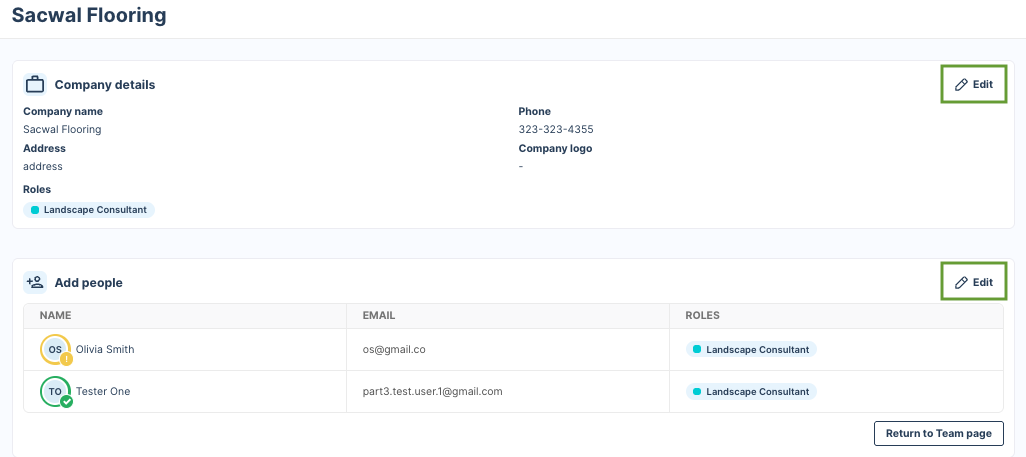
Step 3: Once saved, the updates will be reflected immediately on the Teams page.
Add a Multi-Disciplinary Company
Want to add a multidisciplinary company, like Company XYZ, for both the Electrical and Mechanical roles? You can do that!
Step 1: Select +add company role, then choose the role and discipline from the dropdown and select save.
- If a discipline you need doesn't appear in the dropdown, select +create new, add the discipline name, default prefix, and default annotation colour, then select save discipline.
- To change a discipline's prefix or annotation colour, click edit next to it, make your changes, and select save discipline.
- Need more than one role? You can add as many roles as you need in one go before selecting save.
Step 2: Once you're happy with everything, select save at the bottom.

Add a Multi-Disciplinary Role
Have someone on the team who wears a few hats, like a team member at Company XYZ who reviews both Electrical and Mechanical? You can give one person more than one role!
Step 1: Head to the Teams page and click the "..." next to the person's name, followed by edit roles.
Step 2: Their current roles show at the top. Select the new role from the dropdown (like Consultant), then choose the discipline (like Mechanical).
- Need more than one new role? Select +add another.
- If the discipline you need isn't in the dropdown, select +create new.
Step 3: Select save, and you're all set! Both roles will show next to their name, and the new discipline is added to their company too.

Who can edit roles? Organization admins and Prime Consultants on the project can add or edit a person's roles. On projects owned by a General Contractor, reach out to us at support@part3.io and we'll take care of it for you.
As always, if you have any questions or see an issue with this document, please contact us at support@part3.io