
Project Files: Import Your Specifications
In this article, we'll show you how to import your project specifications into ProjectFiles! 📖
This is the foundation for tracking your spec sections, just like drawings. Part3 tracks versions as you issue revisions and addenda. And once your specs are in, Part3 gets to work: it lists the submittals your specs require, and the Submittal Assistant compares incoming submittals against your spec sections to surface AI-generated review hints.
Here's how to get them imported!
Video Walkthrough: Check out our video to learn how to quickly upload your specs!
Note: You must have a Prime Consultant role on the project to import specifications.
Upload Your Specification
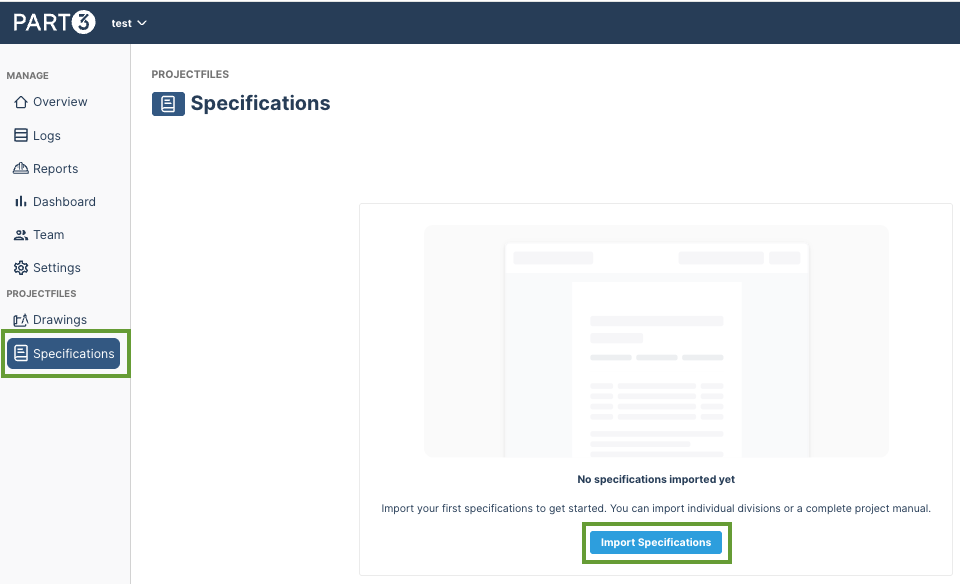
Step 1 — From the Specifications tab, click 'Import Specification'.
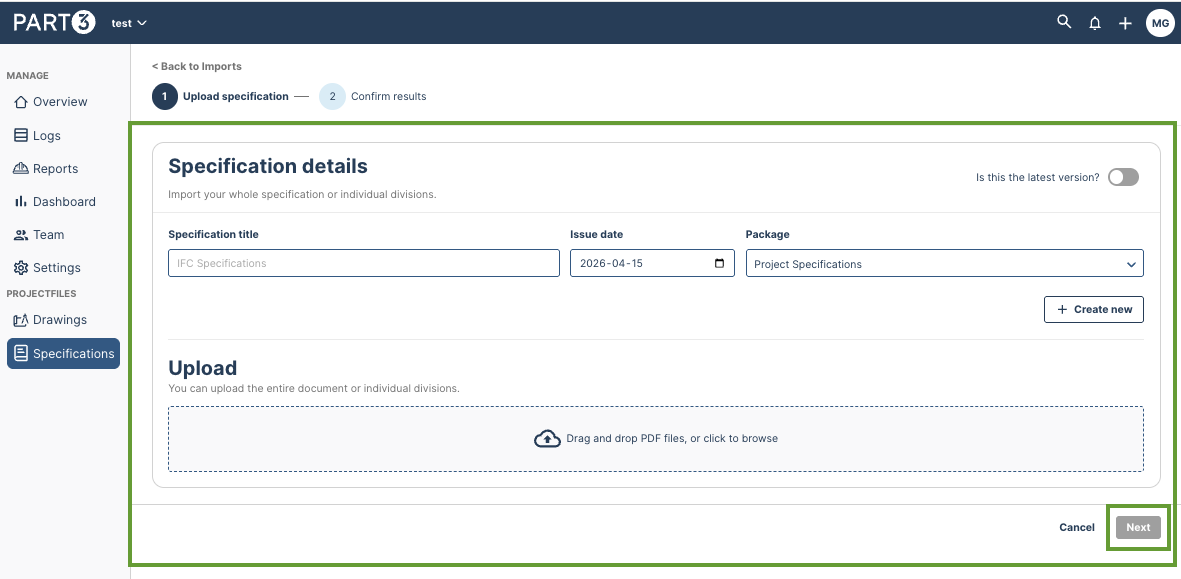
Step 2 — Fill out the basic information below about your specification. This information will categorize your spec sections and dictate revision history.
- Specification title
- Issue date
- Package
- Toggle on if the specs are the latest version
- Upload the spec document (in PDF format) You can upload your entire project manual as one combined PDF, or upload individual section PDFs. When ready, click 'Next'
Spec Packages
A spec package is intended to be used if there are multiple phases or buildings in your project. For example, Building A, Building B, etc.
This does not correlate to versioning of sheets, it is only for categorization.
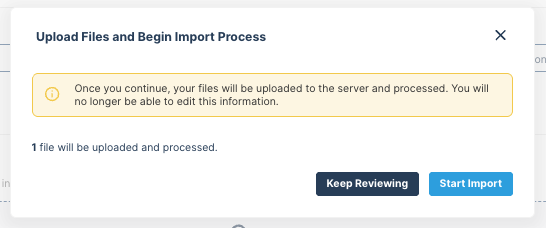
Step 3 — You will be prompted to the 'Upload Files and Begin Import Process' step. Click 'start import' to import your spec! If you need to make adjustments in the previous step click 'keep reviewing'.
It may take a few minutes for our AI to process and separate your PDF. Grab a coffee or sit back and relax ☕
Confirm Results
Step 1 — Once the AI extraction is complete, you'll land on the Confirm results screen. This is where you review what Part3 found in your documents before finalizing the import.
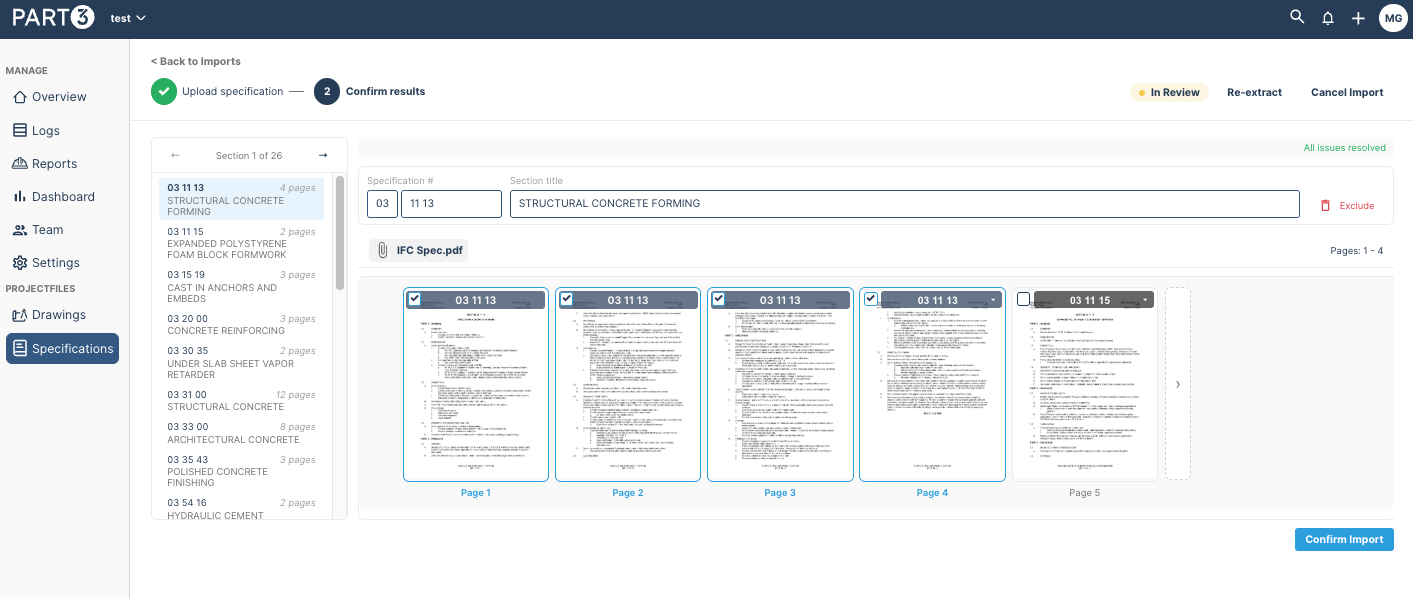
Step 2— Confirm the results of the AI spec extraction. Verify that divisions and titles match your spec!
Hot Tip:
Take a moment to review the results carefully. Accurate section numbers are important because they're how Part3 matches submittals to their corresponding spec sections — which powers the Submittal Assistant and your submittal requirements list!
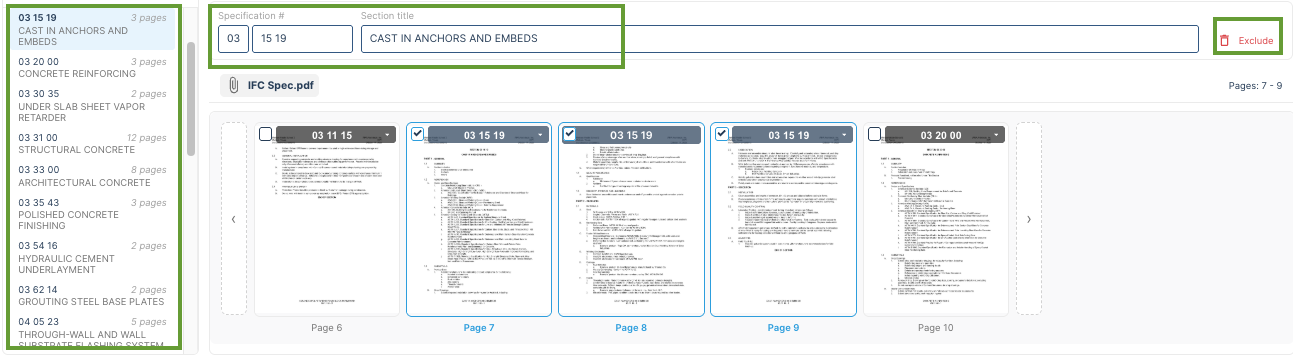
On the left, you'll see all of the extracted spec sections — listed by section number, title, and page count. Click any section to view its details.
At the top, you'll see a summary of any errors (sections the AI couldn't classify) and low-confidence sections (where the AI wasn't sure). Use the 'Next issue →' button to cycle through these and confirm or correct them one by one.
For each section, you can:
- Edit the Specification # — The division code and section number (e.g., 03 33 00).
- Edit the Section title — The name of the section (e.g., "Architectural Concrete Finishes").
- Select the pages to include — Page thumbnails are shown at the bottom so you can see exactly which pages belong to each section. If you have a combined manual with extra content, you can adjust which pages are included.
- Exclude a section — If the AI picked up something that isn't a real spec section (like a table of contents or front matter), click 'Exclude' to remove it from the import.
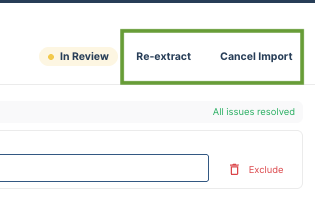
If the extraction doesn't look right, you can click 'Re-extract' to try again, or 'Cancel Import' to start over.
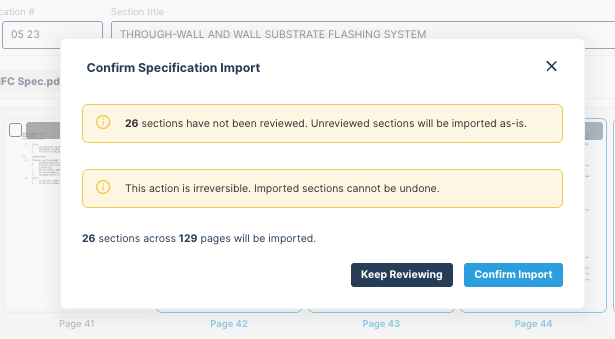
Step 3 — Once you've resolved all issues and are happy with the sections, click 'Confirm Import'.
Note: All issues must be resolved before confirming. You'll see a message at the bottom if there are remaining items to address.
Step 4 — Your spec has now been uploaded to the platform! You'll see a confirmation listing the sections that were imported, with two options:
- 'View submittal requirements' — see the submittals your specs call for (more on this below)
- 'View specifications' — go to your imported spec sections

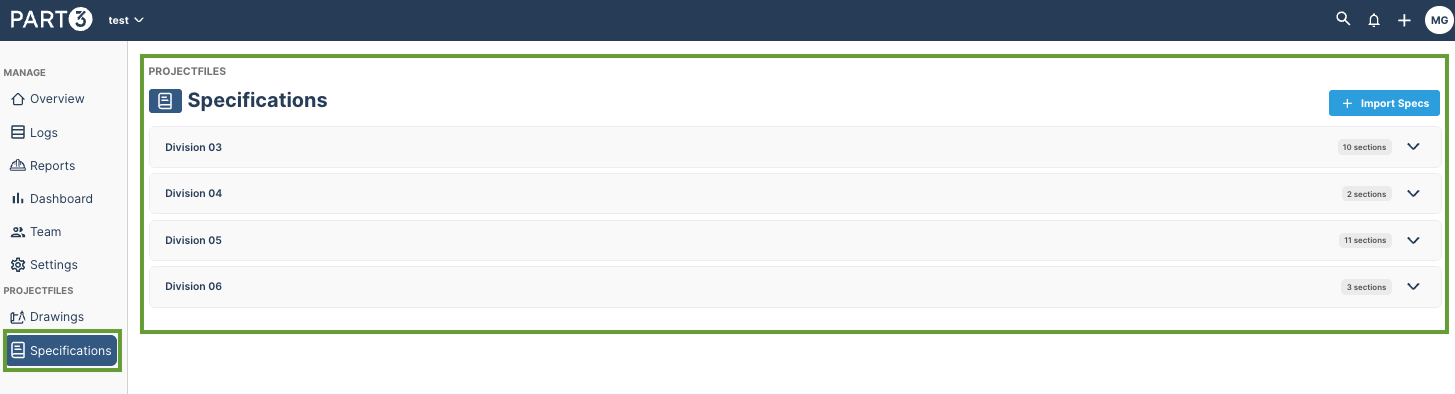
On the Specifications page (left hand nav), you'll see all of your imported spec sections organized by division — fully searchable and ready to go! 🎉
What's Next?
Jump to our AI-Powered Submittal Assistant & Submittal Requirements - Log Audit articles to learn more!
As always, if you see any issues with this article or need help, please reach out to support@part3.io