
ProjectFiles: Import Your Drawings
In this article, we'll show you how to import your drawing sets into ProjectFiles! 📖
This is the foundation for tracking your drawings. Part3 tracks versions as you issue revisions to sheets or sketches.
Here's how to get them imported!
Upload Your Drawings
Step 1 — From the Drawings tab, click 'Upload drawing sheets'.

Step 2 — Fill out the basic information about your drawings. This information will categorize your drawings and dictate revision history. Then click 'Save and Continue'.

Is this the latest version?
You can import your drawing sets at whichever stage you choose (Issued for DD or Tender or Construction, etc). If this is the latest version, tick this box and it will supersede any existing versions that are already in Part3.
Drawing Packages
A drawing package is intended to be used if there are multiple phases or buildings in your project. For example, Building A, Building B, etc.
This does not correlate to versioning of sheets, it is only for categorization.
Step 3 - Drag and drop the drawing sets you want to import. These can be large combined PDF documents. When ready, click 'Start Import'.
Note > You can upload multiple disciplines at the same time. Our ai categorizes drawings based on the sheet naming conventions.

It may take a few minutes for our ai to process and separate your PDF. Grab a coffee or sit back and relax ☕

Step 4 - Have a scroll through the imported drawings to confirm drawing numbers and titles.

Hot Tip:
Take a moment to review the results carefully. Accurate drawing numbers and titles are important because this is what drawing versioning is based on!
ProjectFiles: Drawings
Now that your drawings are uploaded, you're all set! 🎉
When you navigate back to the drawings tab, you will see all of your imported drawings categorized based on the drawing number abbreviation.

Download the Latest Set
Need to Download the latest set? No problem!
Click 'download latest set' (top right) to get a PDF copy of the latest set of drawings.

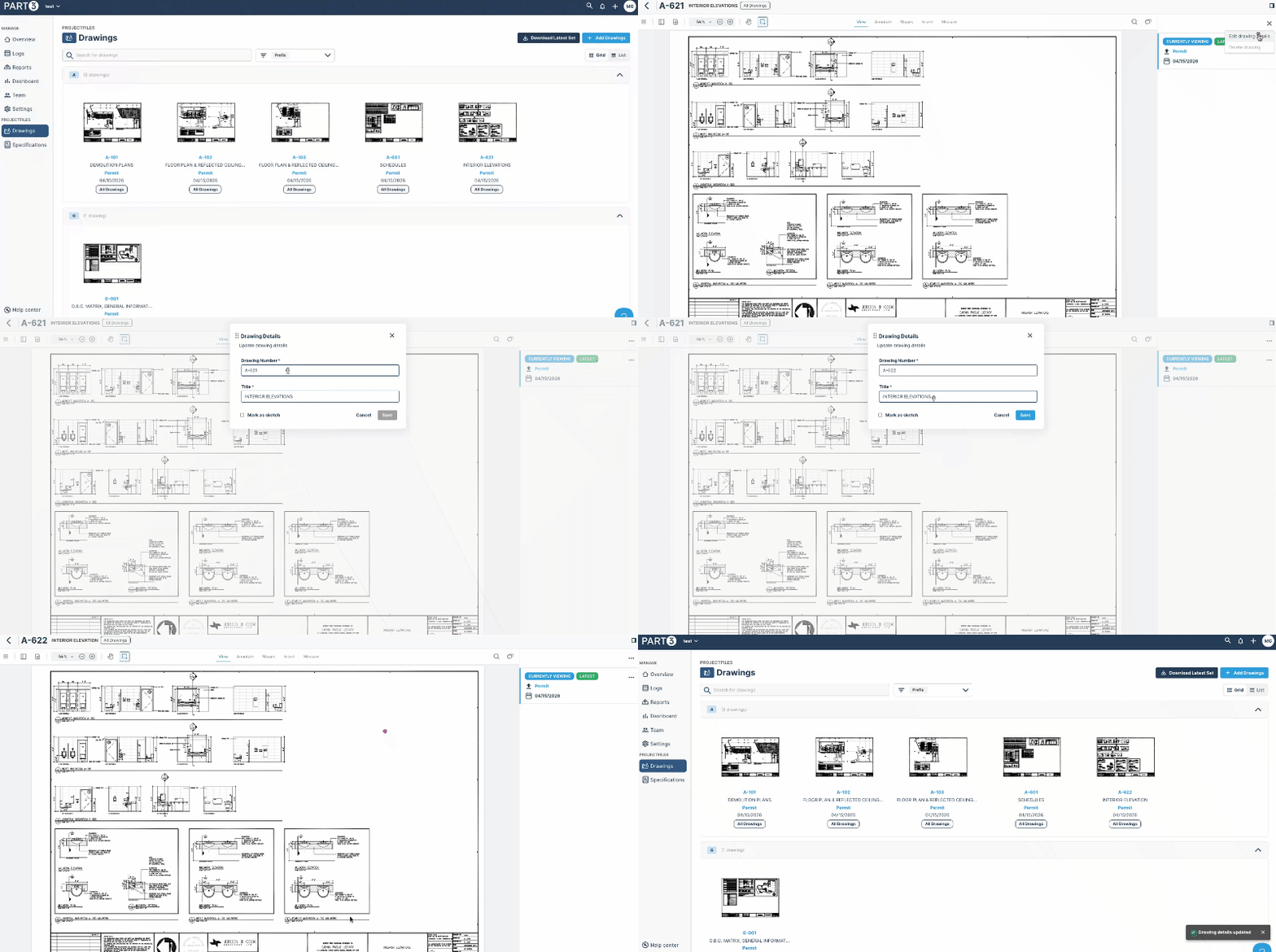
Update the Drawing Number/Title
Need to edit the drawing number and/or title? Also, no problem! Do this by:
- Open the drawing in the ProjectFiles drawing area.
-
Click '...' in the top right, followed by 'edit drawing details'
Make the modifications to the drawing number/title, followed by
'save'
You'll now see these changes back at the drawings area!
Archive Drawings
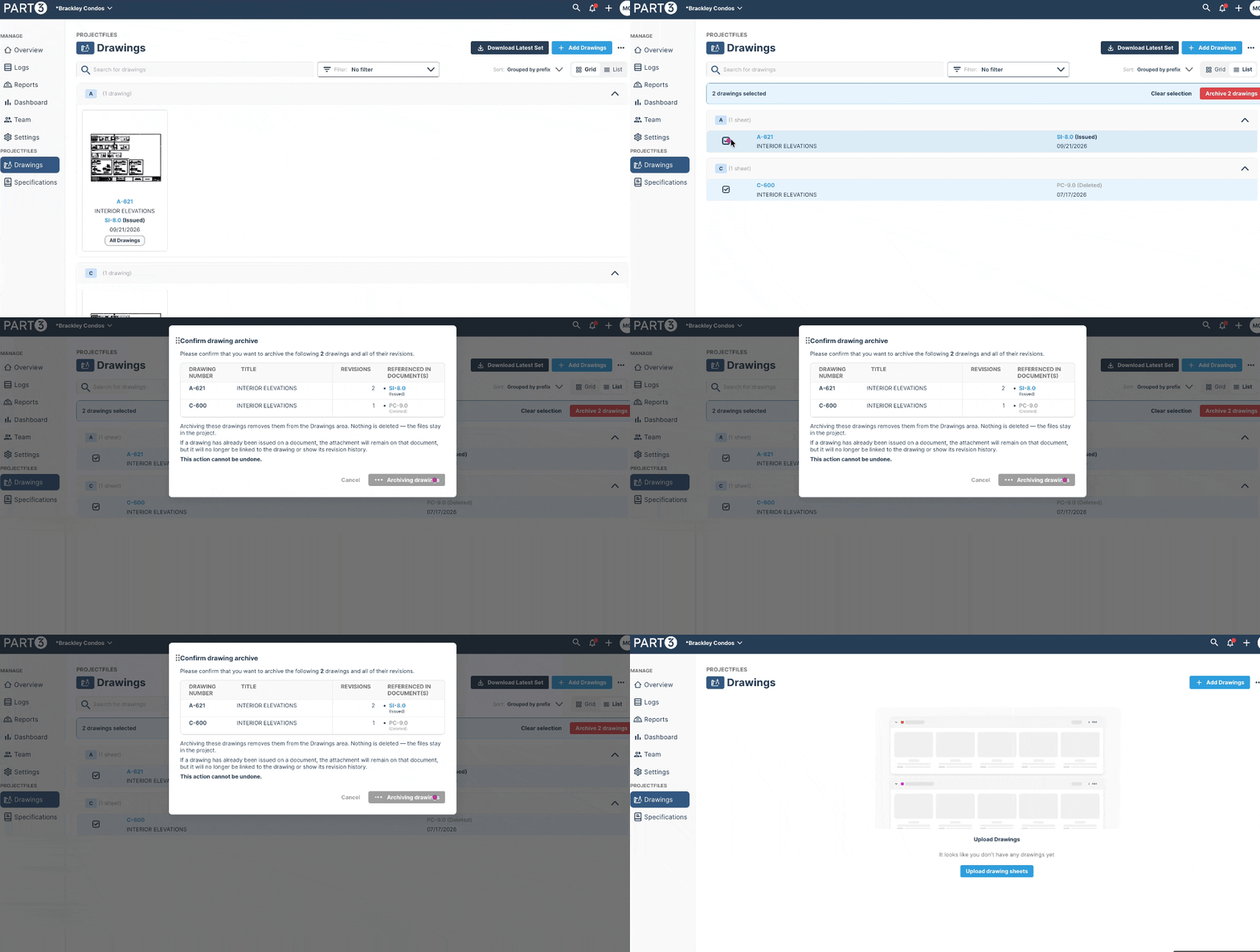
Need to remove several drawings at once? Easy! Do this by:
- Go to the ProjectFiles drawing area.
- Tick the checkbox next to each drawing you'd like to remove, or click '(Select all at the top)' to grab everything in your current view.
- Click the red 'Archive' button in the top right, followed by the 'Archive' button in the confirmation window.
- All selected drawings and their revisions will now be removed from the drawings area!
Wait, why does it say Archive and not Delete? 🤔
In Part3, archiving is how you delete drawings. Once archived, the drawing and all of its revisions are removed from your drawings area, just like a delete.
The one difference: if that drawing was already included on something you issued (like an RFI or CO, it will still show on that document, clearly marked as Archived along with who archived it and when. That way your issued documents stay accurate and your project record stays intact.
Tip: only the Prime Consultant on a project can archive drawings.
What's Next? Import Your Specification!
Now that your drawings are uploaded, it's time to upload your specifications!
Jump to our ProjectFiles: Import Your Specifications article to learn more!
As always, if you see any issues with this article or need help, please reach out to support@part3.io