
File emails to Part3 from Outlook
This feature is in BETA. Please reach out to support@part3.io if you would like this enabled.
Important project emails usually live in one person's inbox. With the Part3 add-in for Outlook, you can file an email, with its attachments, to a Part3 project in a couple of clicks, and your whole firm can find it later on the project's Emails page.
In this article we'll cover the following:
- What to do before you start
- How to open the add-in and sign in
- How to File an email
- How to choose a folder
- What to do with attachments
- Emails that are already filed
- Earlier emails in the same conversation
- Retry attachments that didn't upload
- Move an email to another project
- File several emails at once
- Find, search and export filed emails in Part3
- Who can see filed emails
- Good to knows
- Troubleshooting
Before you start
- Your IT admin installs the add-in for your organization. If you don't see it in Outlook, ask them to follow Deploy the Part3 add-in for Outlook (IT admins). If you are not the admin, you cannot install it on your own.
- You need a Part3 account, and you must be on the project you want to file to.
- You can file only to projects your own firm owns. Projects where you're a consultant, contractor or other collaborator aren't listed.
- The project must take emails. Your organization admin chooses which projects do. See Choose which projects take filed emails (organization admins).
Open the add-in and sign in
Step 1: Open an email in Outlook.
Step 2: Select File to Part3. In Outlook for Windows and Mac, it's in the ribbon in the Part3 group. In Outlook on the web and the new Outlook for Windows, you may find it under Apps in the email's toolbar.
A Part3 pane opens beside the email.
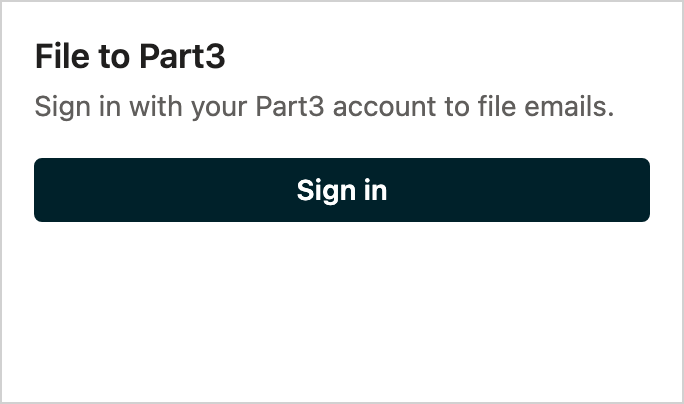
Step 3: The first time, select Sign in. A Part3 sign-in window opens. Sign in as usual, including any verification code you use for Part3.
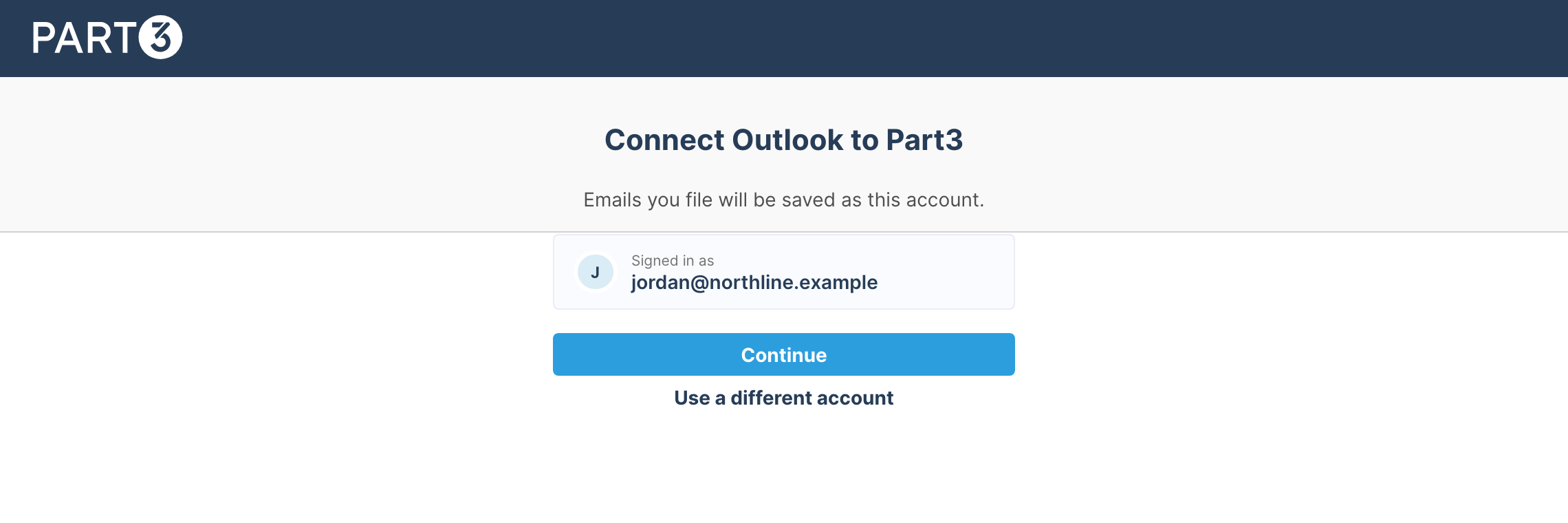
If you're already signed in to Part3, the window shows Connect Outlook to Part3 and the account you're signed in as. Select Continue to use that account, or Use a different account to switch.
Good to know: The Part3 account you sign in with is credited with filing the email, and decides which projects you can file to. It doesn't have to match your Outlook email address. The top of the pane always shows Signed in as your Part3 email, with Sign out next to it.
File an email
Step 1: With the pane open on an email, check the Suggested project. Part3 suggests one by looking at:
- earlier emails in the same conversation that were already filed
- the email's sender and recipients who are on your projects
- a project name or number in the subject or text
A short note under the project name says why it was suggested. If none of these find a match, Part3 may ask AI for a suggestion (see Good to know).
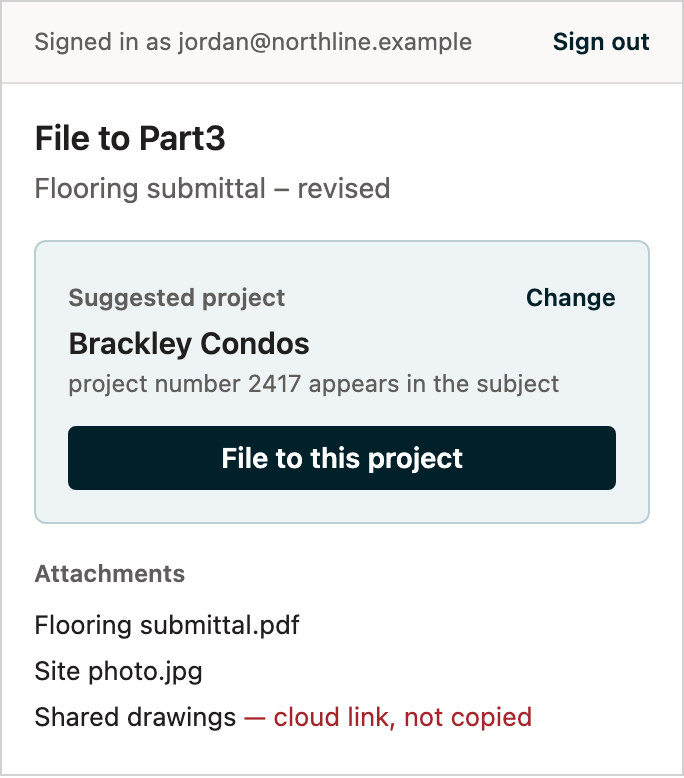
Step 2: If the suggestion is right, select File to this project. If the project has folders, check the Folder first (see Choose a folder).
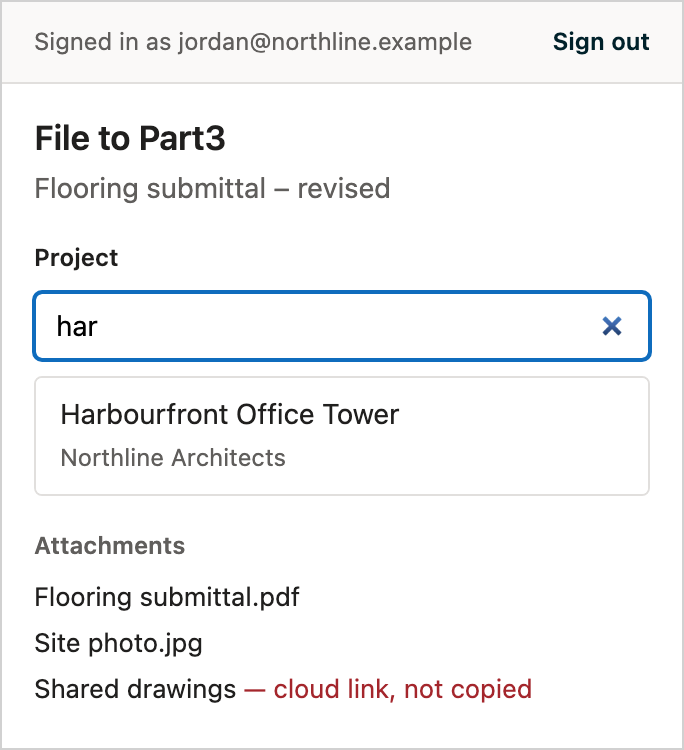
To pick a different project, select Change, search for the project, and select it. If there's no suggestion, the project search is shown straight away.
Step 3: The pane shows progress while it uploads the email and its attachments. When it's done, you'll see Filed to Part3 with the project name and an Open in Part3 link.
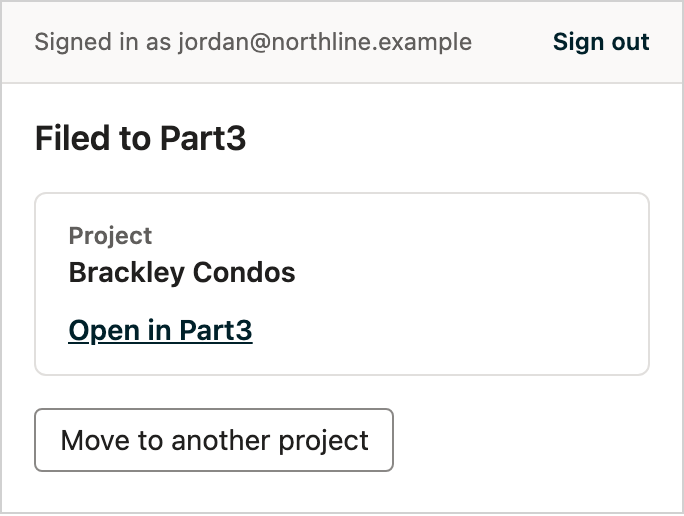
In Outlook, the email gets a green Filed to Part3 category, so you can see at a glance what's been filed.
Hot Tip: In most versions of Outlook you can pin the pane (the pin icon at the top of it). It then stays open and follows you as you select other emails, which makes filing a batch much faster.
Choose a folder
Projects can sort their emails into folders, such as RFIs or Submittals. When the project you're filing to has folders, the pane shows a Folder field under the project, already filled in:
- For a reply, the folder where the conversation's latest filed email is. The pane says Earlier emails in this conversation are in this folder.
- Otherwise, the folder you last filed to in that project.
- Otherwise, No folder.
Change it if you need to, then select File to this project.

When the email is filed, the pane shows the folder under the project.

A folder marked (restricted) is visible only to its members and your organization admins. To create folders and manage who sees them, see Organize filed emails into folders.
Attachments
The pane lists the email's attachments before you file. They're filed together with the email.
- Inline images, such as logos in signatures, are saved too, and listed separately in Part3.
- OneDrive and SharePoint links aren't copied. The link stays in the email body. The pane shows cloud link, not copied.
- Empty files aren't filed (empty file, not filed).
- Size: Part3 accepts attachments up to 150 MB each (over 150 MB, not filed). In practice, your organization's Outlook message size limit is usually much lower, often about 25 MB.
Emails that are already filed
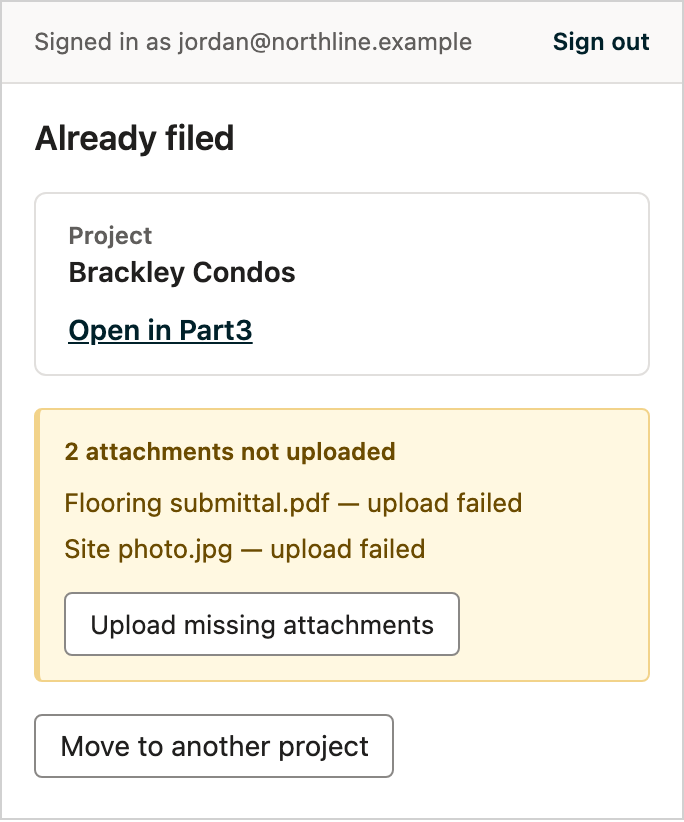
When you open the pane on an email you've already filed, it shows Already filed with the project, an Open in Part3 link and Move to another project.
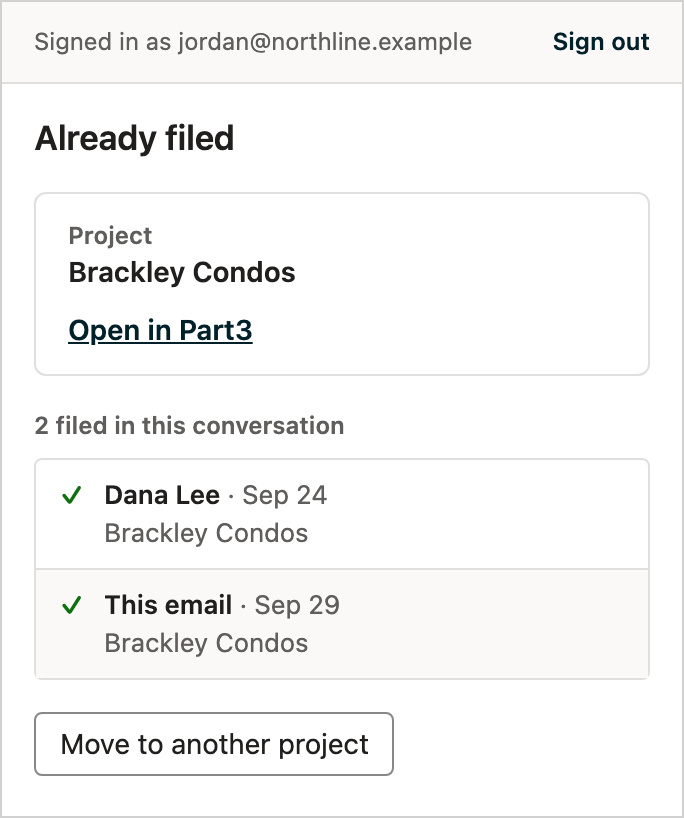
If a colleague already filed the same email to the same project, filing it again doesn't create a copy. The pane shows Already in Part3, and Part3 records you as having filed it too.
Earlier emails in the same conversation
When other emails in the same conversation have been filed, the pane shows a section such as 2 filed in this conversation. It lists who sent each filed email, when, and which project it went to. This email marks the one you have open, and shows whether it's filed yet. When there are more than three, select Show more to see the older ones.
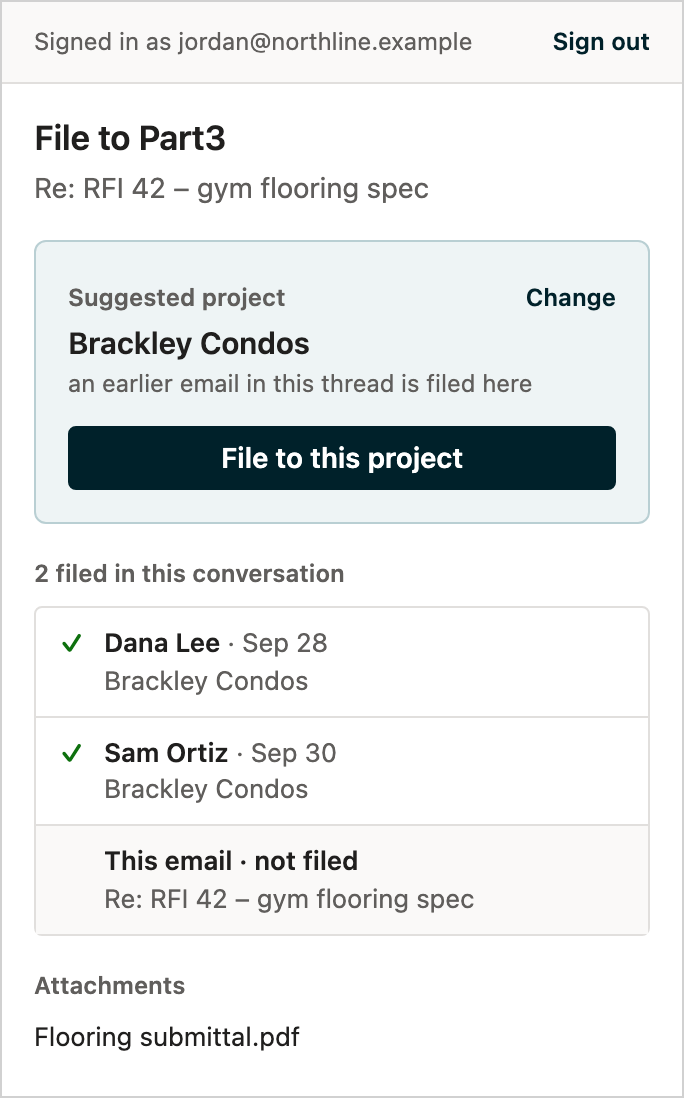
✨ This is useful because Outlook shows the Filed to Part3 category on a whole conversation when any one email in it is filed. The pane tells you exactly which ones are.
Retry attachments that didn't upload
If an attachment fails to upload (for example, if your connection drops), the email is still filed. The pane says how many attachments weren't uploaded, for example 2 attachments not uploaded.
- Right away: select Retry next to a file, or Retry all.
- Later: open the pane on the same email. It shows the attachments that are still missing. Select Upload missing attachments.
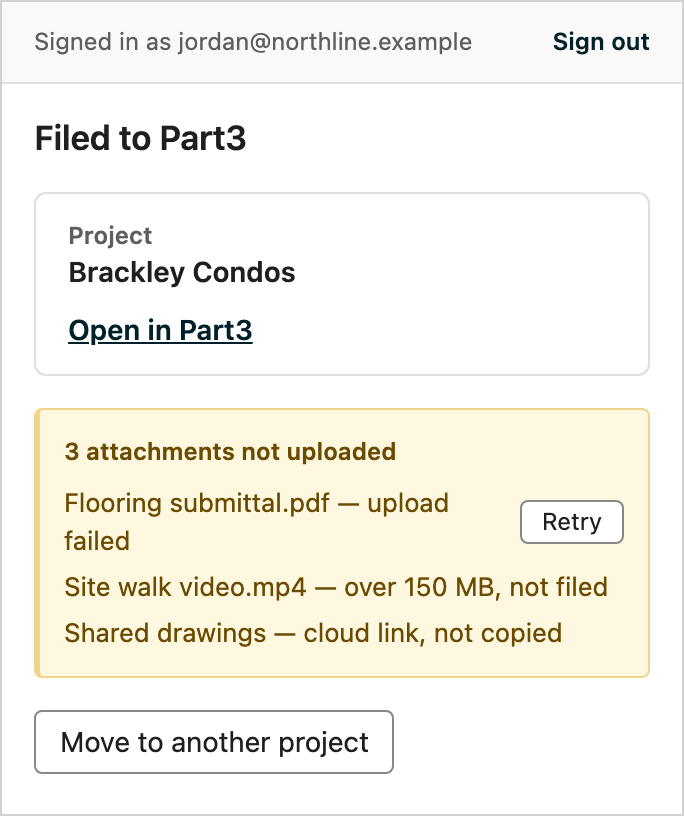
When everything is in, the pane shows All attachments uploaded. In Part3, the email's Attachments tab also lists any files that weren't uploaded.
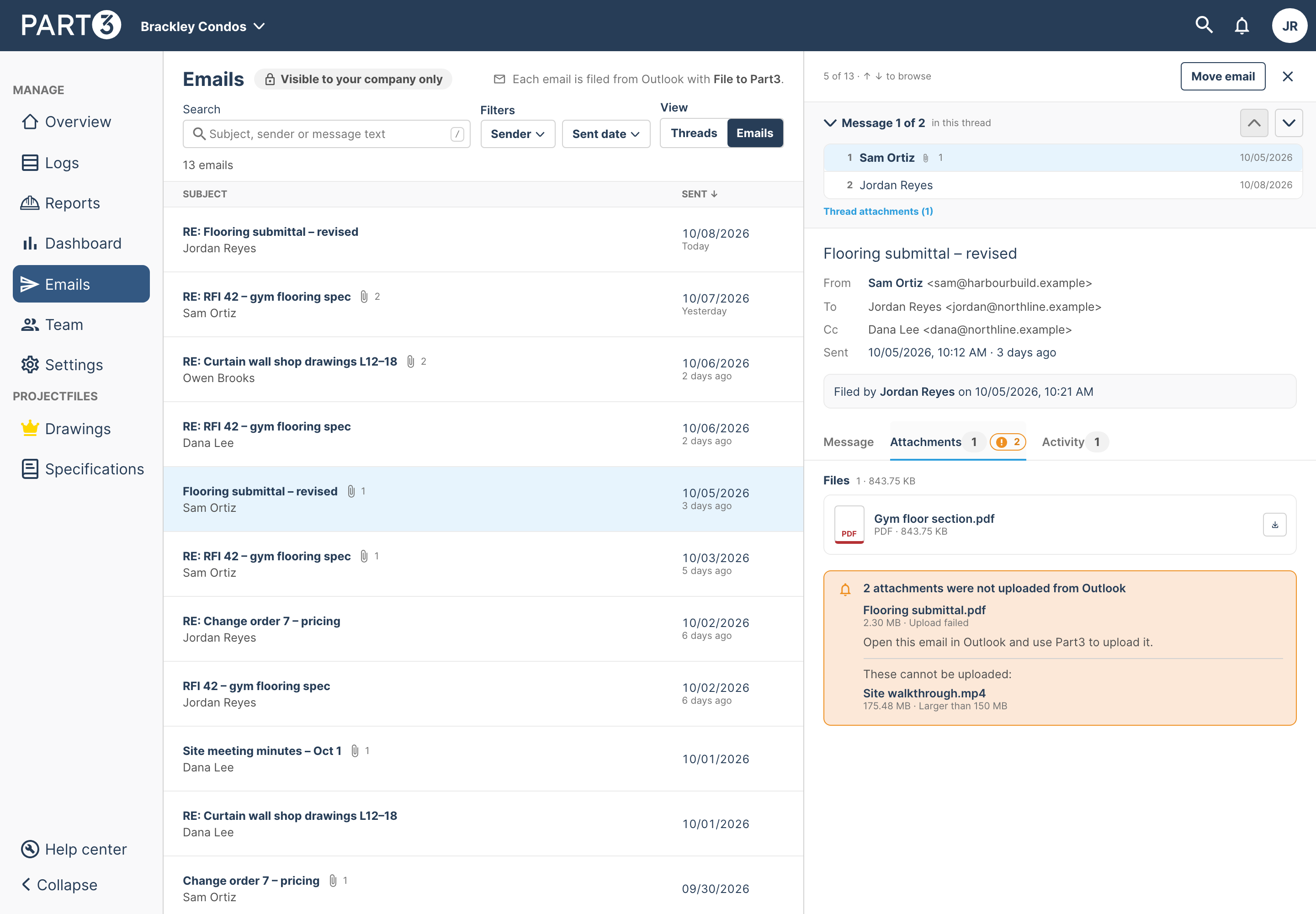
Links and empty files can't be retried, because there's nothing to upload.
Move an email to another project
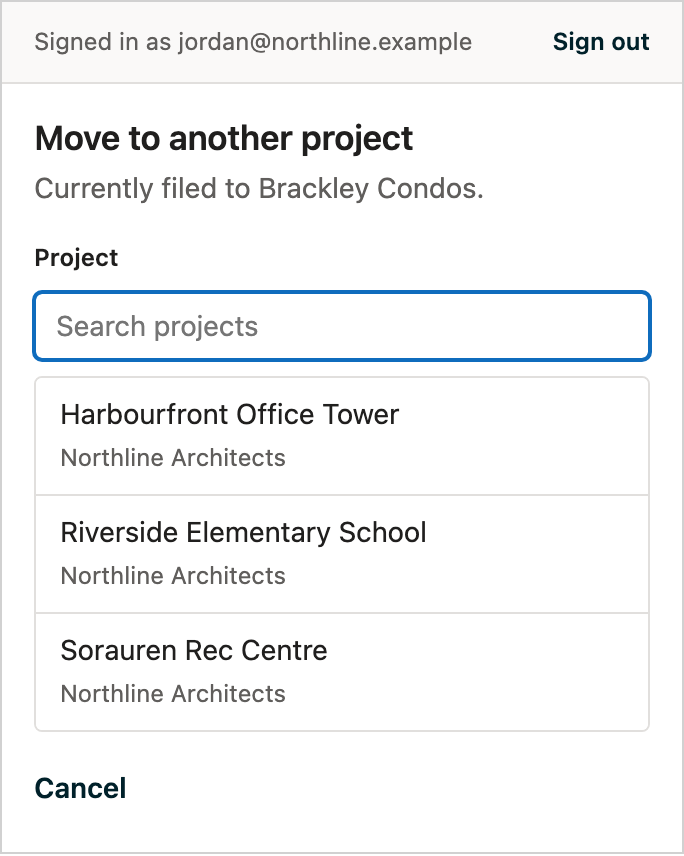
Filed to the wrong project? On the filed email, select Move to another project, then choose the project. You can move an email only between projects your firm owns that take emails.
You can also move an email, or a whole conversation, from the project's Emails page in Part3.
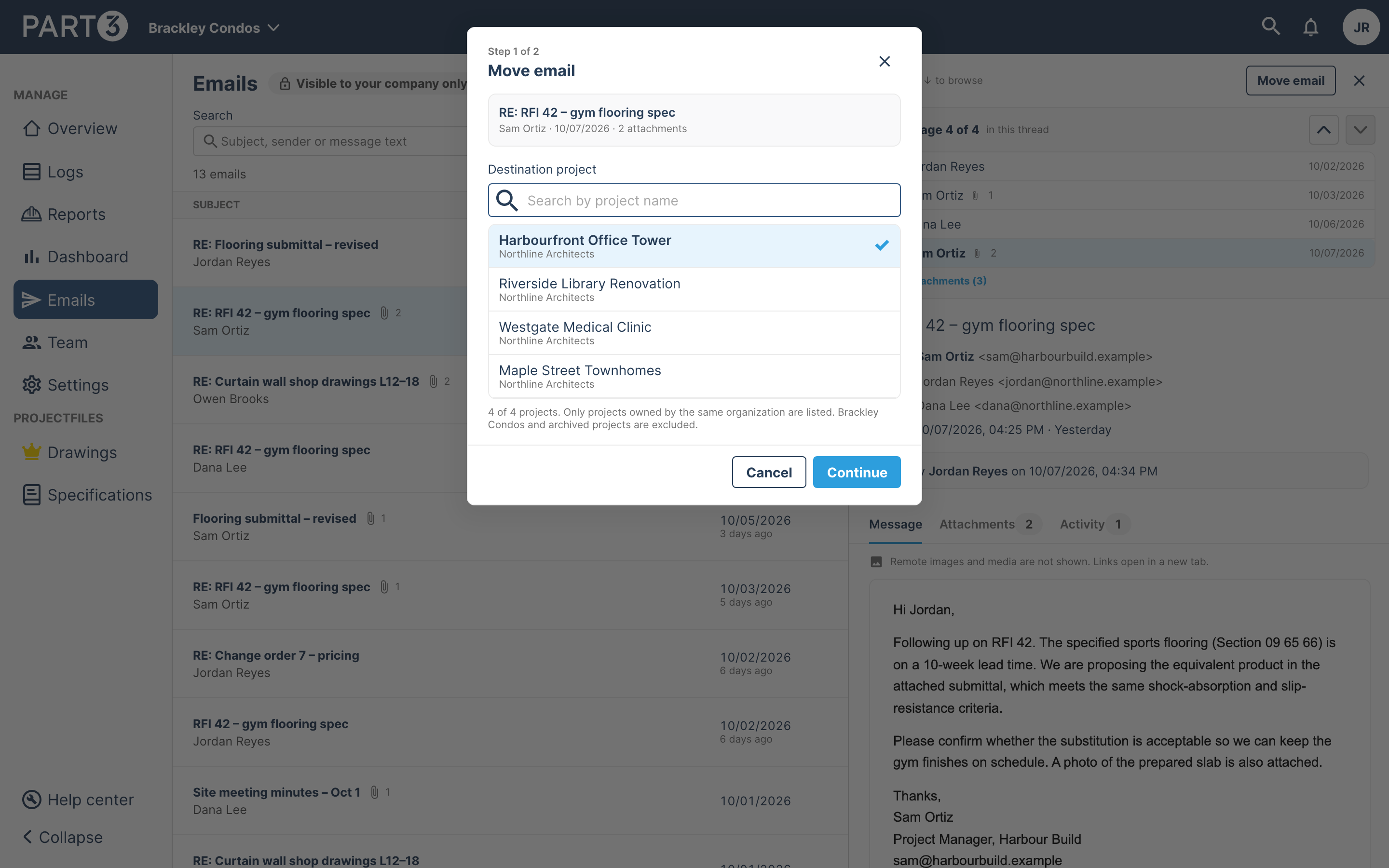
Moving an email to another project takes it out of its folder. An email in a restricted folder must be taken out of the folder before it can be moved.
File several emails at once
In Outlook on the web and Outlook for Windows, you can select up to 100 emails in your message list and file them all to one project and folder. The pane shows File 'X' emails to Part3. See File several emails at once from Outlook.

Find, search and export filed emails in Part3
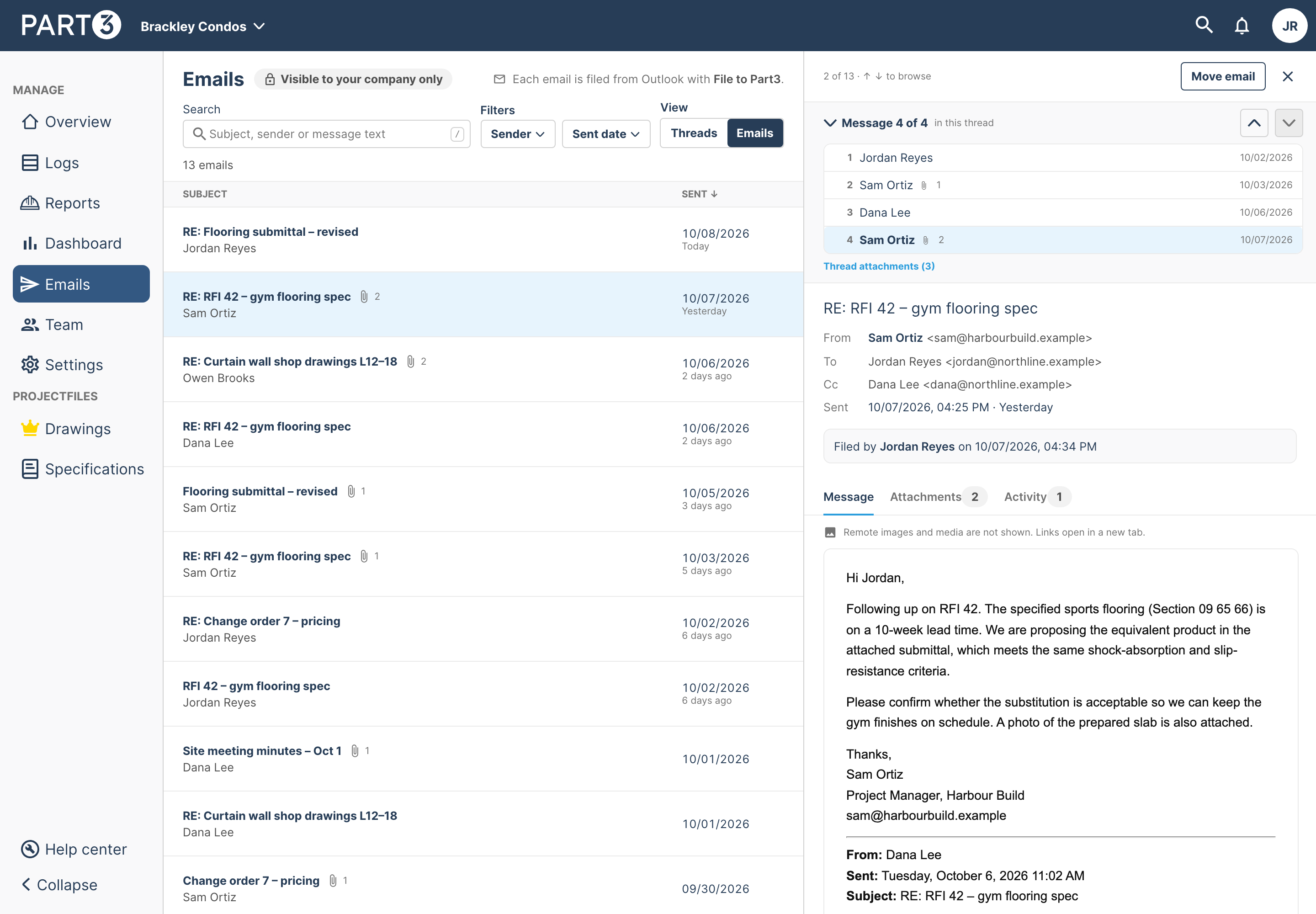
Open the project in Part3 and select Emails in the project's side navigation. You can also select Open in Part3 in the Outlook pane.
On the Emails page you can:
- switch between Threads (one row per conversation) and Emails (every email, newest first)
- browse by folder using the tabs across the top
- search, and filter by sender and date
- open an email to read it, download its attachments, and see who filed it and when
- move an email or a thread to a folder, or to another project
- select Exports to download the project's filed emails as zip files. See Export filed emails.

Filed emails also show up in Part3's search (the 🔍 at the top of a project), and you can ask Ask Part3 about them, for example "What did the engineer say about RFI-014?". See Search and ask about filed emails.
Images aren't shown in filed emails viewed in Part3. This protects you from tracking images that report when an email is opened. Inline images are still listed on the Attachments tab, and you can see the original in Outlook.
Who can see filed emails
- Everyone in your firm (members of the organization that owns the project) can see, search and export the project's filed emails, even if they aren't on the project.
- Except restricted folders: emails in a restricted folder are visible only to the folder's members and your organization admins. The same goes for search, Ask Part3 and exports.
- Filing and moving need you to be on the project as well.
- Other companies on the project, such as consultants, contractors and owners, can't see your filed emails. The page shows Visible to your company only as a reminder.
Good to know
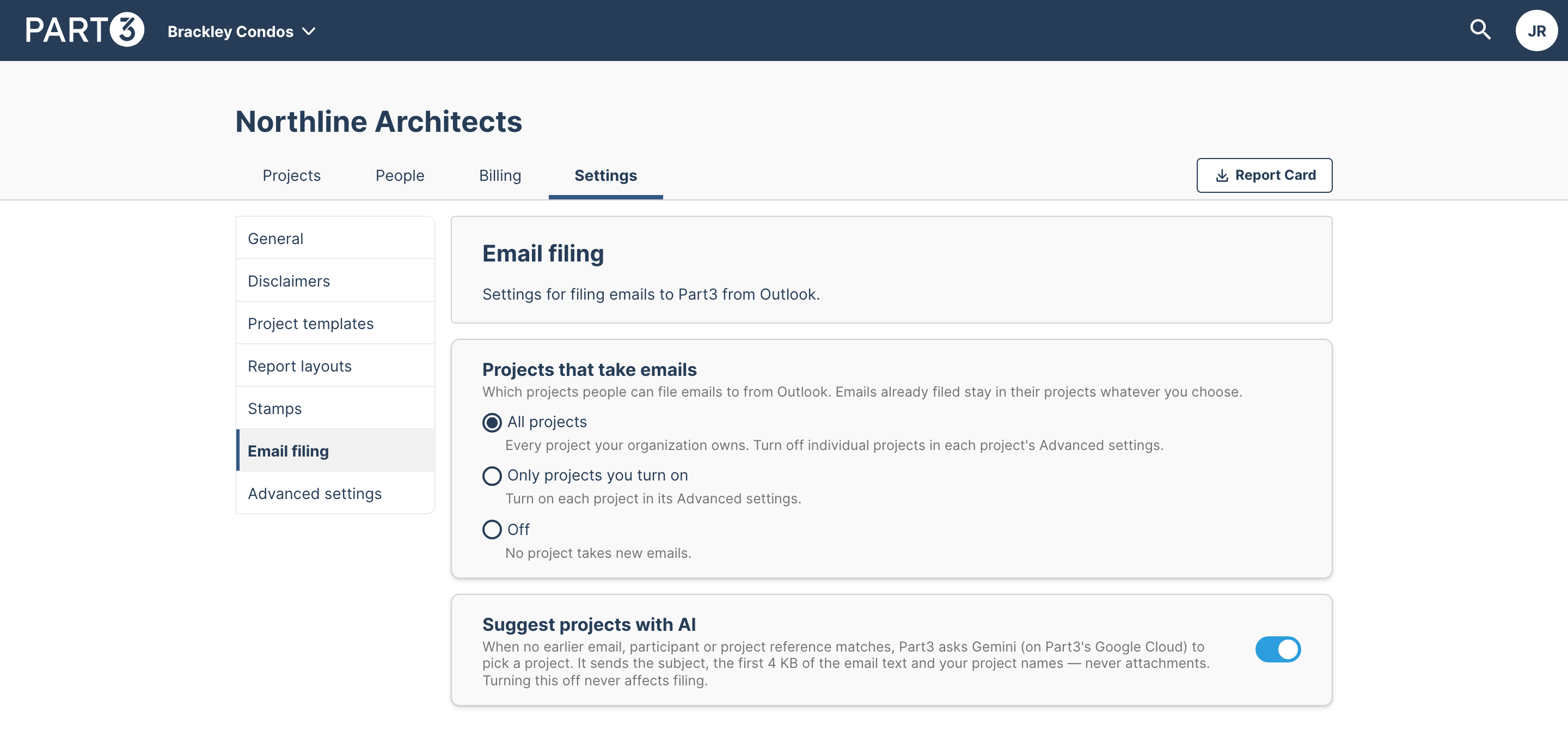
- AI suggestions. When no earlier email, recipient or project reference matches, Part3 may ask Google's Gemini model, running in Google Cloud in the US, to suggest a project. It sends the subject, the first 4 KB of the email's text and your project names. Attachments are never sent. Your organization admin can turn this off under Organization settings → Email filing → Suggest projects with AI. Filing works the same either way.
- One project per email. An email is filed to one project. To change it, move it.
- Large email bodies. Emails whose body is over 2 MB can't be filed.
- Outlook mobile isn't supported. Use Outlook on the web, or Outlook for Windows or Mac.
- Mailboxes on your firm's own Exchange Server can file from classic Outlook for Windows only. See Deploy the Part3 add-in on on-premises Exchange (IT admins).
- Signing out of the pane doesn't change anything you've filed or the Filed to Part3 categories.
Troubleshooting
Q: I don't see File to Part3 in Outlook.
Your IT admin needs to deploy the add-in to you. After they do, it can take a while to appear; Microsoft allows up to 24 hours. Try closing and reopening Outlook. The add-in appears when you're reading an email, not when you're writing one.
Q: It says "This version of Outlook can't file emails to Part3."
Your version of Outlook is too old for the add-in. This can happen when your mailbox is on your firm's own Exchange Server. Update Outlook, or ask your IT admin which version of Outlook to use.
Q: The project I want isn't in the list.
You can file only to projects that your own firm owns, that you're on, and that take emails. Ask a project admin to add you to the project. Projects where you're a consultant or collaborator for another company won't appear. If email filing is turned off for the project, ask your organization admin.
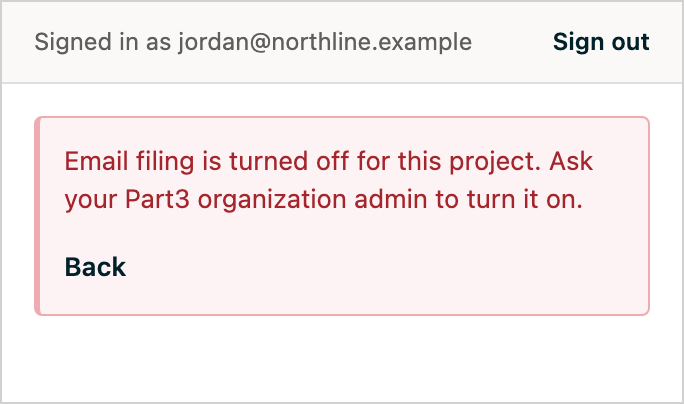
Q: It says "Email filing is turned off for this project."
Your organization admin has turned off filing for this project, or for every project. Emails already filed there stay where they are. Ask your organization admin to turn it on (see Choose which projects take filed emails), or file to another project.
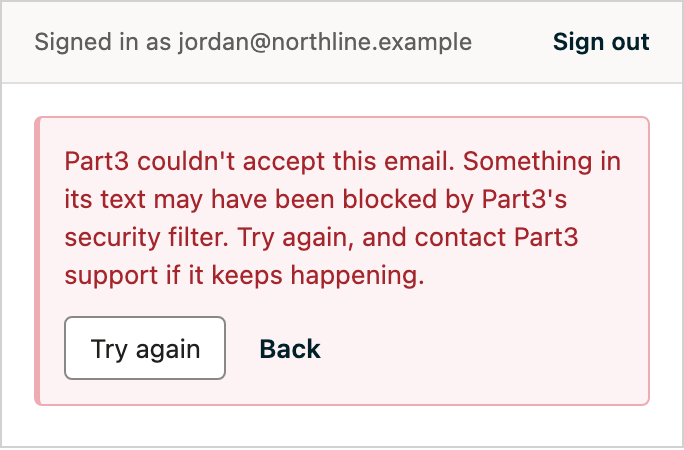
Q: It says "Part3 couldn't accept this email."
Something in the email's text was blocked by Part3's security filter. Select Try again. If it keeps happening for the same email, contact support@part3.io and tell us the email's subject and when you tried.
Q: It says "You don't have access to file to this project."
You aren't on that project, or it belongs to another company. Ask a project admin to add you.
Q: It says "The chosen folder no longer exists, or is no longer visible to you."
Someone deleted the folder, or removed you from it, after you chose it. Choose another folder and file again.
Q: It says "Folders could not be loaded."
Select Try again. If you file anyway, the email is filed outside any folder; you can move it into a folder later in Part3.
Q: It says "Your Part3 session has ended."
Select Sign in again.
Q: It says "You're filing too quickly."
There's an hourly limit on filing. Wait a minute and try again.
Q: It says "Couldn't reach Part3."
Check your connection and select Try again. Filing picks up where it left off, without creating a duplicate.
Q: It says "Filed, but Outlook didn't let us tag this message as filed."
The email is filed in Part3; Outlook just didn't accept the category, which can happen in some mailboxes. The pane still recognises the email as filed.
Q: The pane says "This pane won't follow your selection."
Your Outlook doesn't support a pinned pane. Close the pane and reopen it after choosing another email.
Q: The pane shows "Already filed" on a reply I haven't filed.
With conversation view on, Outlook sometimes gives the pane the first email in the conversation. Select the email again.
Q: I signed in with the wrong Part3 account.
Select Sign out at the top of the pane, then Sign in and choose Use a different account.
Q: I can't find Emails in my project in Part3.
Email filing must be turned on for your organization, and you must be a member of the firm that owns the project. Contact support@part3.io if you think it should be there.
As always, if you see any issues with this article or have questions, please reach out to support@part3.io