
Deploy the Part3 add-in for Outlook (IT admins)
This feature is in BETA. Please reach out to support@part3.io if you would like to enable this workflow.
The Part3 add-in for Outlook lets your team file project emails straight from Outlook into the right Part3 project, with their attachments. This article is for the Microsoft 365 administrator who installs the add-in for your organization.
You deploy it once from the Microsoft 365 admin center. Outlook then shows it to the people you choose. Users don't install anything themselves.
Here's what your users see in Outlook when they open the add-in on an email:
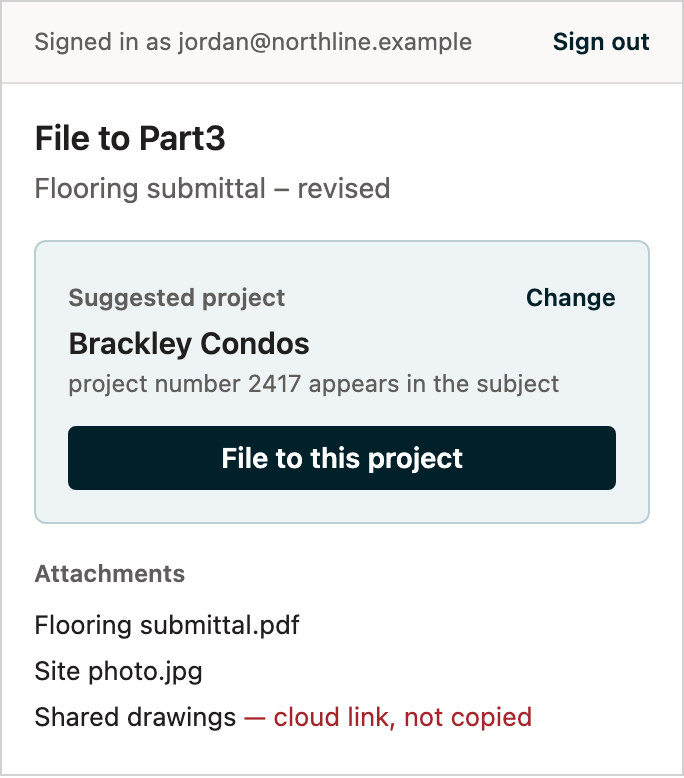
In this article, we'll cover the following: We'll cover:
- What to do before you start
- How to deploy the add-in
- What the add-in's permission is used for
- How long it takes to appear
- Updates and what to do
- Supported versions of Outlook
- Change who has it, or remove it
- Network allowlist
- FAQs
- Downloadable manifest
Before you start
- Exchange Online mailboxes. This article is for Microsoft 365 (Exchange Online) mailboxes. If your mailboxes are on your firm's own Exchange Server, follow Deploy the Part3 add-in on on-premises Exchange (IT admins) instead.
- An admin who can deploy add-ins. You need the Global Administrator or Exchange Administrator role in the Microsoft 365 admin center.
- Email filing turned on for your Part3 organization. Contact your Part3 contact or support@part3.io to turn it on. This shows the Emails page on your Part3 projects, which is where filed emails are read. Your Part3 organization admin then chooses which projects take emails; see Choose which projects take filed emails (organization admins).
- Part3 accounts for your users. Each person signs in to the add-in with their own Part3 account. They can file only to projects that your firm owns in Part3 and that they are a member of.
Deploy the add-in
Step 1: Sign in to the Microsoft 365 admin center.
Step 2: Go to Settings → Integrated apps, then select Upload custom apps.
Step 3: For the app type, choose Office Add-in. Select the option to provide a link to the manifest file and paste:
https://outlook.part3.io/manifest.xml
Select Validate, then Next.
Step 4: Choose who gets the add-in: just you, the entire organization, or specific users and groups. We recommend starting with a small pilot group.
Hot Tip: Deploy to yourself first. Once the add-in appears in your own Outlook and you've filed a test email, add everyone else.
Step 5: Review the permission the add-in requests (see the next section), accept it, and select Finish deployment.
The add-in appears as Part3 in the list of integrated apps. Its button in Outlook is File to Part3.
What the add-in's permission is used for
The add-in asks for Microsoft's Read/write mailbox permission (ReadWriteMailbox ). Microsoft requires this level for one thing the add-in does: creating a mailbox category.
Here's everything the add-in does in a mailbox:
- Reads only the emails the user is filing. When the user opens the add-in, it reads the email in front of them: sender, recipients, subject, date, message headers, the body and its attachments. When the user selects several emails and files them together, it reads each selected email the same way, one at a time. It doesn't scan, search or read any other mail.
- Creates one category, "Filed to Part3". The first time someone files an email, the add-in adds a green Filed to Part3 category to their mailbox's category list. This is the step that needs Read/write mailbox.
- Marks filed emails. It applies that category to each email the user files. On an email filed on its own, it also saves a small hidden note (the Part3 project and filing ID), which helps the add-in recognise the email as filed.
- Remembers the last folder used per project in the add-in's own settings, which roam with the user's mailbox.
The add-in doesn't send, delete or move mail. It only works when a user opens it and files.
How long it takes to appear
Microsoft says a newly deployed add-in can take up to 24 hours to appear in users' Outlook, and changes to an existing deployment up to 72 hours. It's often much sooner.
If it still hasn't appeared, ask the user to fully close and reopen Outlook (or reload Outlook on the web).
Updates
- Most updates are automatic. Part3 hosts the add-in, so improvements and fixes reach your users without any action from you.
- Occasionally the manifest changes, for example a new button or capability. When that happens, Part3 will let you know. Re-submit the same manifest URL in Integrated apps to pick up the change; Microsoft's up-to-72-hour window applies.
Supported versions of Outlook
| Outlook | Supported | File several emails at once |
|---|---|---|
| Outlook on the web (Microsoft 365) | Yes | Yes |
| New Outlook for Windows | Yes | Yes |
| Classic Outlook for Windows (Microsoft 365) | Yes | Version 2412 or later |
| Outlook for Mac (Microsoft 365) | Yes | Not yet. One email at a time. |
| Outlook mobile (iOS and Android) | No | No |
| On-premises Exchange Server | Classic Outlook for Windows only. See the on-premises article. | Yes, in classic Outlook for Windows |
The add-in needs Outlook API version Mailbox 1.8 or later. Filing several emails at once needs Mailbox 1.15. Current Microsoft 365 versions of Outlook meet these, except as noted above. Older one-time-purchase versions such as Outlook 2016 and 2019 aren't supported. If you run into issues on any version, contact support@part3.io.
The add-in shows when reading email. It doesn't appear while you write one.
Change who has it, or remove it
Step 1: In the Microsoft 365 admin center, go to Settings → Integrated apps and select Part3.
Step 2: To change who has the add-in, edit its users. To remove it for everyone, remove the app.
Removing the add-in doesn't remove anything from Part3. Emails already filed stay in their projects. The Filed to Part3 category stays in users' mailboxes until they delete it.
Network allowlist
If your network filters web traffic, allow these addresses for the add-in to work:
outlook.part3.io: the add-in itselfapp.part3.ca: the Part3 sign-in windowapi.part3.ca: the Part3 APIstorage.googleapis.com: uploads of email bodies and attachments to Part3's storageidentitytoolkit.googleapis.com,securetoken.googleapis.com,firebaseappcheck.googleapis.com,content-firebaseappcheck.googleapis.com: Part3 sign-inwww.google.com/recaptcha,www.gstatic.com/recaptcha: sign-in bot protectionappsforoffice.microsoft.com: Microsoft's add-in library
FAQ
Q: Does the add-in need a Microsoft Entra app registration, Microsoft Graph, or Microsoft sign-in?
No. Users sign in with their Part3 account. The add-in works only through Outlook's add-in interface, on the emails the user chooses to file.
Q: Does it go through Microsoft AppSource?
No. It's a custom add-in you deploy from the manifest URL, so it doesn't appear in the public store.
Q: Which Part3 account does a user sign in with?
Their own Part3 account, which doesn't have to match their mailbox address. The add-in always shows which Part3 account is signed in, and users can sign out from the add-in.
Q: Who can see the emails we file?
Only members of the firm that owns the Part3 project. Emails in a restricted folder are visible only to that folder's members and your Part3 organization admins. Consultants, contractors and other companies on the project can't see filed emails, and they can't file to your projects.
Q: Can we limit which projects take emails?
Yes. Your Part3 organization admin can allow all projects, only the projects they turn on, or none. See Choose which projects take filed emails (organization admins).
Q: Where are filed emails stored?
In Part3, with the project. Attachments, the email's formatted body and a copy of the original message are stored in the same region as the project's other files (Canada or the US). The details used to list and search filed emails (sender, recipients, subject, date and the email's plain text) are stored in Part3's main database in the US, alongside the project's other records.
Q: Does Part3 use AI on our emails?
Only to suggest a project, and only when no earlier email, recipient or project name or number points to one. In that case Part3 sends the subject, the first 4 KB of the email's text and your project names to Google's Gemini model, running in Google Cloud in the US. Attachments are never sent. Organization admins can turn this off in Part3 under Organization settings → Email filing → Suggest projects with AI. Turning it off doesn't affect filing.
Q: How large an attachment can be filed?
Part3 accepts attachments up to 150 MB each. In practice your Exchange message size limit applies first: Microsoft's default lets users receive about 25 MB of attachments, and Exchange Online's maximum is about 110 MB per attachment. Files shared as OneDrive or SharePoint links aren't copied; the link stays in the email body.
Downloadable manifest
The add-in's manifest is hosted at:
https://outlook.part3.io/manifest.xml
We recommend deploying from this link, so that you always use the current version. If your process needs a file, open the link and save it (right-click → Save as), then choose the upload a manifest file option in Step 3.
Once your team is set up, share File emails to Part3 from Outlook and File several emails at once from Outlook with them.
As always, if you see any issues with this article or have questions, please reach out to support@part3.io